Delete or Deactivate Student
TABLE OF CONTENTS
(Note: A student who is rostered on the portal through a third-party integration, like One Roster, Google classroom, LTI, etc cannot be deleted via the platform UI. These students can only be deleted by the third-party integration mechanism.)
Delete Student
Publishers, school/district admins and teachers can delete students from the portal. Once these users are deleted, their content license, activities, handouts, notifications, and class associations will all be removed from the portal and cannot be restored.
The deleted student's username can be reused to roster new school/district users.
After deleting the student, the license associated with the deleted student is also released. These licenses can be used to roster new school/district users.
Students rostered by the publisher or school/district admin, cannot be deleted by the teacher.
Students rostered by the publisher can be deleted by the school/district admin.
1. Log in to the portal.
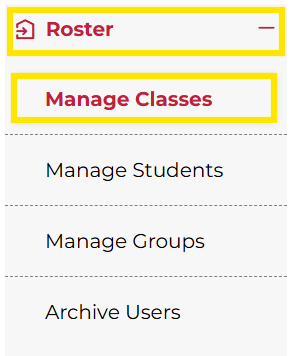
2. Click Roster on the left-hand side menu. Then click Manage Classes / Class.
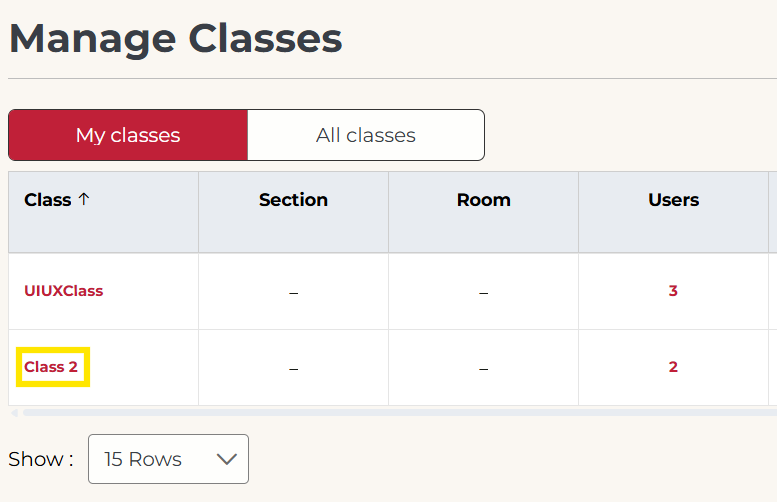
3. Click on the class name in the Class column in the table.
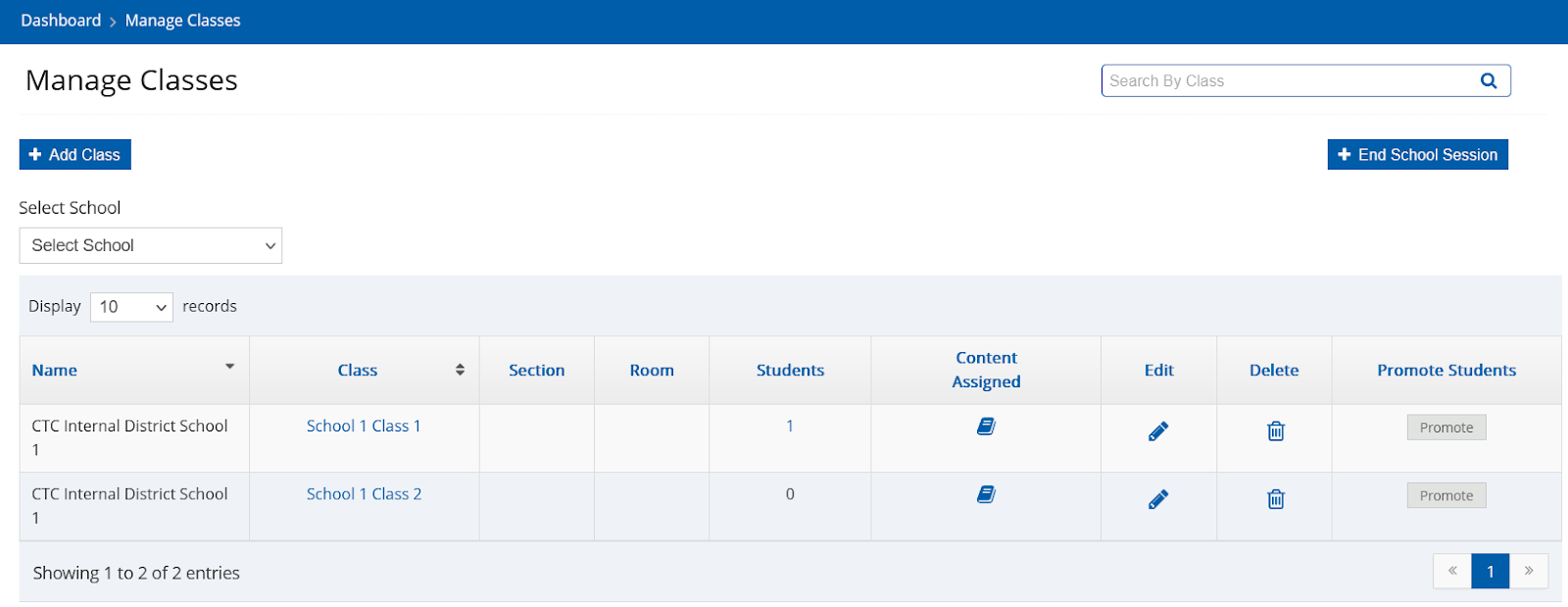
Not what you see? Click to see the old UI view.
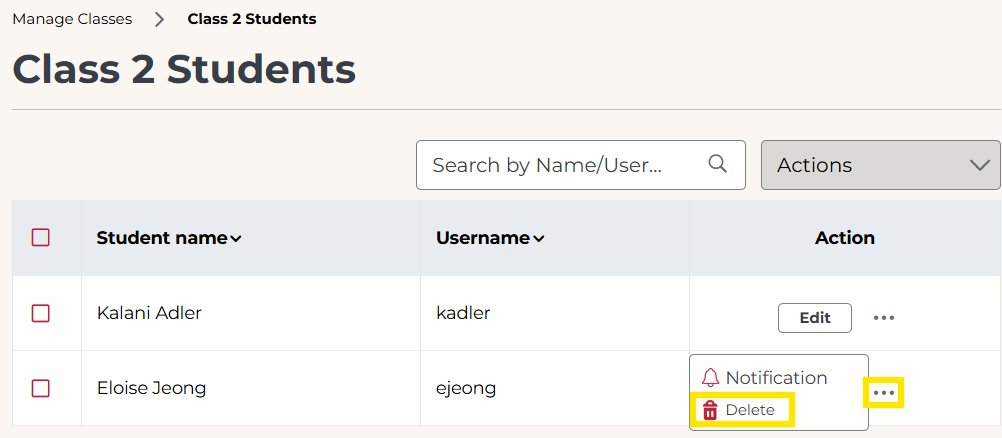
4. In the Action column, for the student you wish to delete, click the 3 dots. Then click Delete.
Not what you see? Click to see the old UI view.
Check the checkbox of the student you want to delete. Click the "Delete" button or click the "Delete" icon in the Delete column.

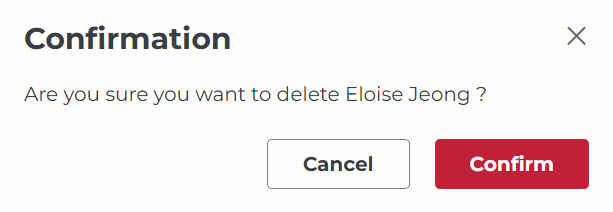
5. Click Confirm.
(Note: A student who is rostered on the portal through a third-party integration, like One Roster, Google classroom, LTI, etc cannot be deleted via the platform UI. These students can only be deleted by the third-party integration mechanism.)
Deactivate Student
Publishers, school/district admins and teachers can deactivate a student from the portal, using the "Deactivate" feature. Students will not be able to log in to the portal if their account status is marked as deactivated.
Deactivation will free up the license consumed by the student. This license can then be used to roster other users.
Deactivate will not free up the deactivated student's username, i.e., you cannot roster any other user with the same username.
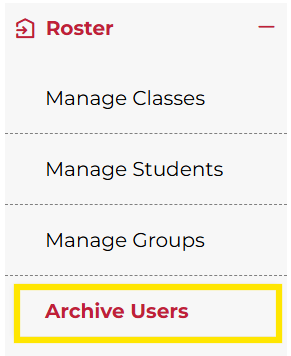
Once the student is deactivated, their name will be removed from the Student List and will be moved to the "Archive Users" list. Publishers and school/district admins can restore the student account and data by enabling the account status of the deactivated student as "Activated" from the "Archived User" page.
A deactivated student will get the following message if they try to log in to the portal.
"Your account is deactivated, please contact the administrator"

1. Log in to the portal.
2. Click Roster on the left-hand side menu. Then click Manage Students / Student.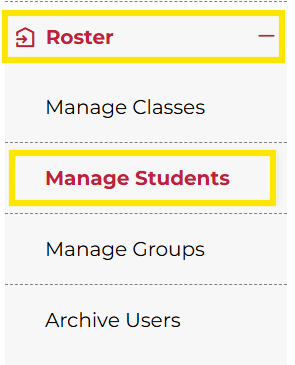
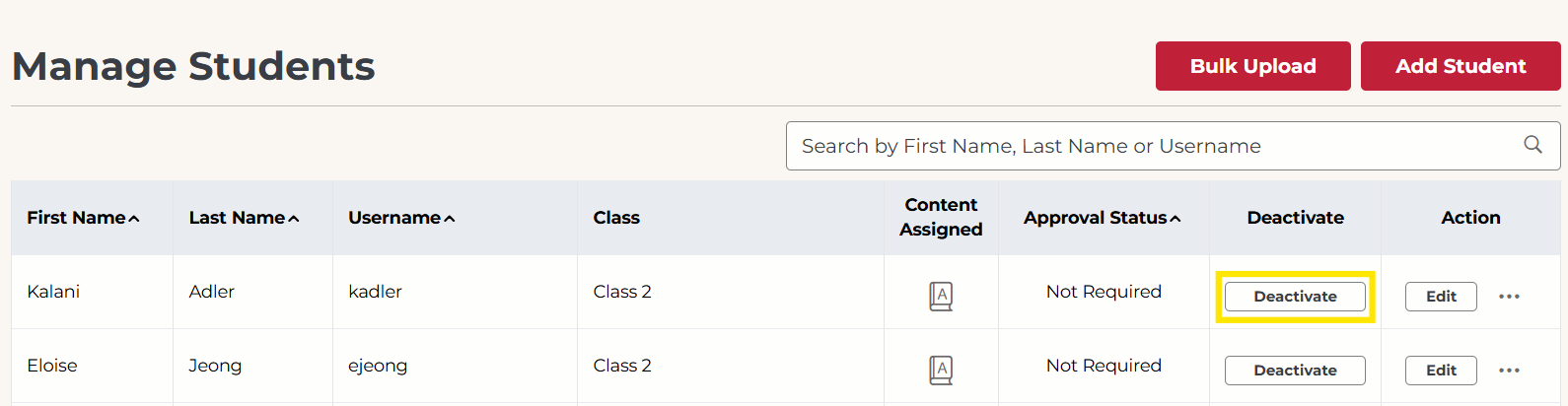
3. Click the Deactivate button on the Student List.
Not what you see? Click to see the old UI view.
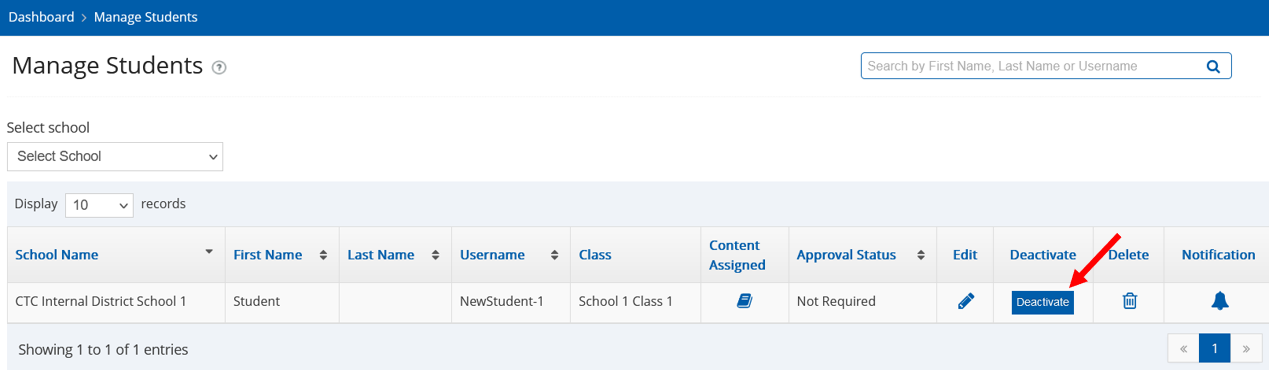
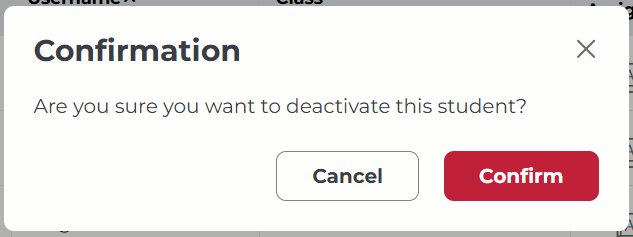
4. Click Confirm / Yes.
Deactivated students will appear under Roster > Archive Users. If needed, you can reactivate students from this page.
(Note: A student who is rostered on the portal through a third-party integration, like One Roster, Google Classroom, LTI, etc cannot be deactivated from the platform UI. These students can only be deleted by the third-party integration mechanism.)
Was this article helpful?
That’s Great!
Thank you for your feedback
Sorry! We couldn't be helpful
Thank you for your feedback
Feedback sent
We appreciate your effort and will try to fix the article