How to Browse/Preview Questions
TABLE OF CONTENTS
This guide will cover what you can find under the Question Bank. Find it by clicking Activity > Manage Activity via the side panel, then go to the Question Bank tab.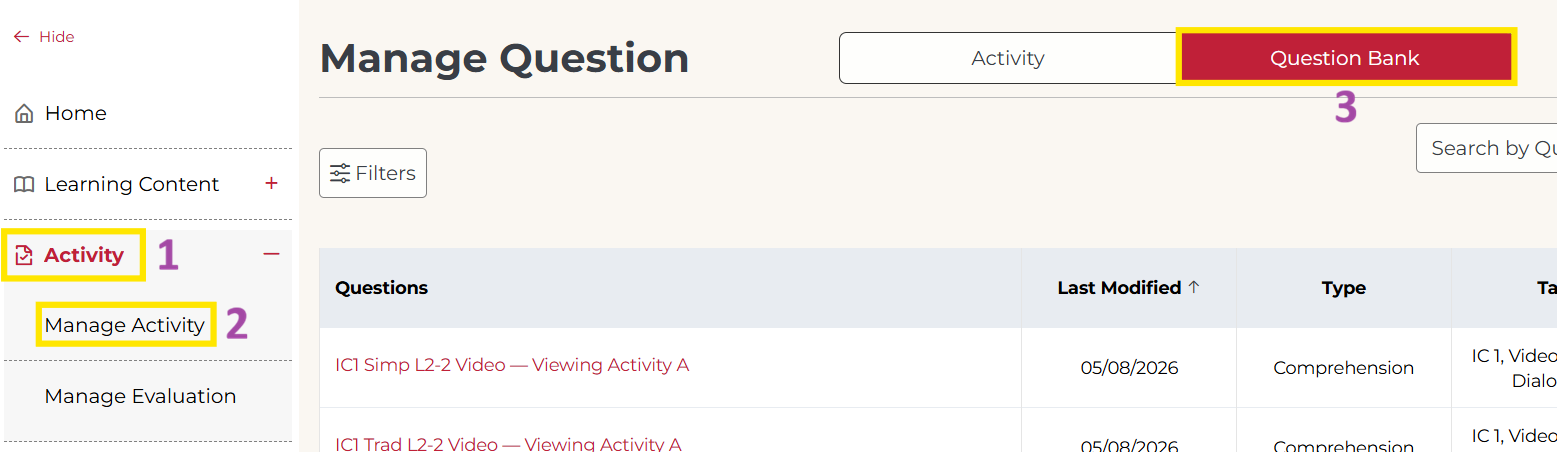
Not what you see? Click to see the old UI view.
This guide will cover what you can find under the Activities > Questions tab via the side panel.

Some subscriptions come with pre-made questions that match the exercises you would find in a physical book. You will find these questions (if applicable) as well as any questions you create here.
Questions can be bundled into an Assignable Activity and assigned to students.
Manage Question
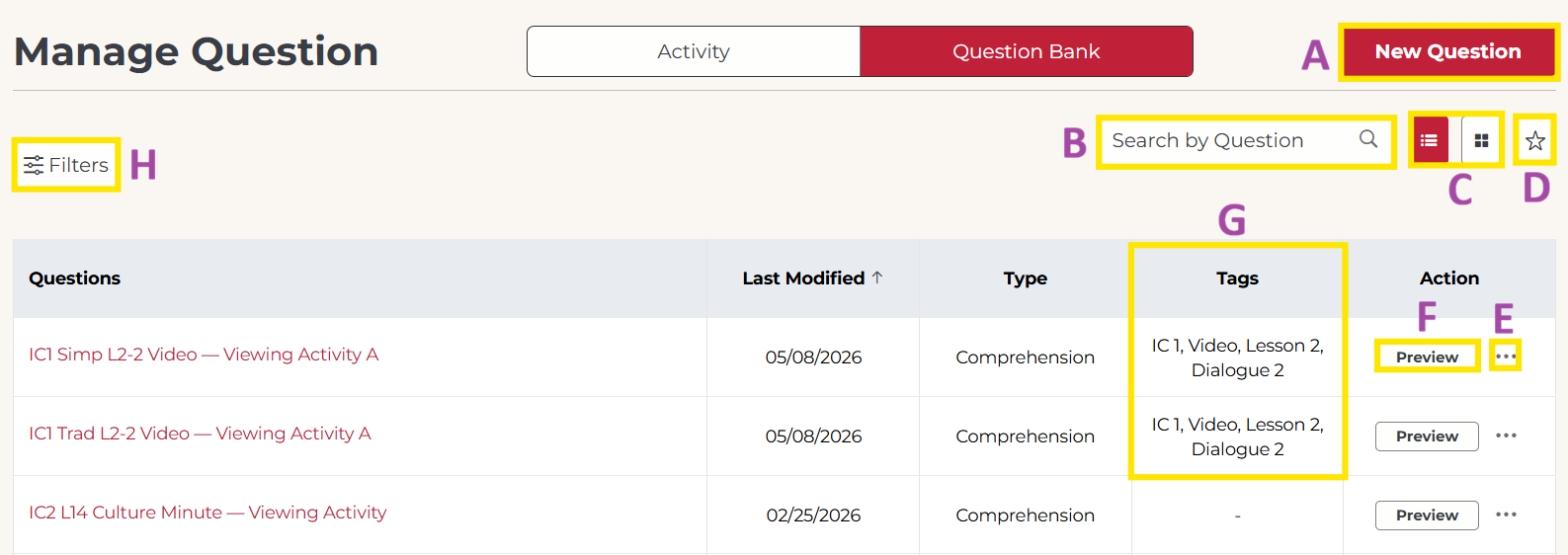
A. New Question: Click this button to create a new question.
B. Search: Type to search by question title. Results will display any questions with the searched text in the title.
C. View Layout: Use these buttons on the top-right to toggle between List View (left) and Grid View (right).
D. Starred: Click here to view all starred (favorited) questions.
E. Actions: When you click the 3 dots, you will see additional question options. Some functions described below may only apply to questions you created, not questions provided as part of your subscription.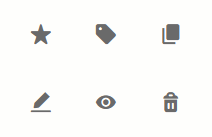
- Star/Favorite: Click to mark a question as Starred, or to un-star a Starred question.
- Tags: Click to view and edit question tags.
- Clone: Click to create a copy of a question.
- Edit: Click to edit a question.
- Disable: Click to disable a question. If a question is disabled, it can no longer be included in new Assignable Activities. It will be marked with a red line.
- Delete: Click to delete a question. If a question is part of an activity, you cannot delete it.
F. Preview: Click this button to view the question content.
G. Tags: Question tags are used for filtering questions. Tags are provided for the following information: Book Series, Book Type, Chapter/Lesson, Section/Part, Exercise Type
Example: GFC 3, Workbook, Chapter 1, Section 1, Writing
H. Filters: Click here to open the filtering options.
- Question Type: All questions provided by Cheng & Tsui are Comprehension questions. You may filter self-made questions by type: single choice, multiple choice, fill in the blank, etc.
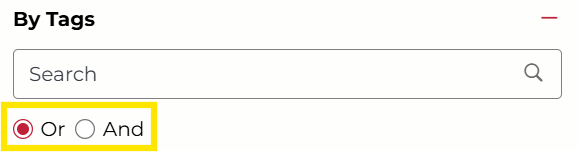
- By Tags: Check the boxes to add tags to your filter criteria. Select a checked box to uncheck it.
If you select Or, search results will display questions that have ANY of the tags selected. If you select And, search results will only display questions that have ALL of the tags selected.
- Content: Check the boxes to view all questions associated with a specific piece of content. To view Cheng & Tsui-provided questions, look for the ones ending in Assessment Questions.
Not what you see? Click to see the old UI view.

Grid View

List View

Tags
Question tags are typically provided in the following format:
[Book Series], [Book Type], [Chapter/Lesson], [Section/Part], [Exercise Type]
Example: GFC 3, Workbook, Chapter 1, Section 1, Writing
Question tags are used for filtering questions. (See Filter Section)
Filter


Preview Question
Click on a question in Grid View or List View to preview it. Answers to any Fill in the Blank-type questions will appear at the bottom of the preview.

Question Functions
(Note: Some functions described below may only apply to questions you create yourself, not questions provided to you via subscription.)


Question Titles
Question titles are typically provided in the following format:
[Book Series] [Book Type] [Chapter/Lesson]-[Section/Part] [Exercise Type] [Exercise Letter]
We can break down the following title as an example: GFC3 WB C1-S1 Writing A
GFC3 = Go Far with Chinese 3
WB = Workbook
C1 = Chapter 1
S1 = Section 1
Writing = Exercise Type
A = Exercise Letter
Search By Question
Questions can be filtered based on their title by typing in the Search By Question box. See examples below.
Question Types
All questions display as Comprehension questions in the Question Bank. However, they may include any of the following question types as sub-questions.

Was this article helpful?
That’s Great!
Thank you for your feedback
Sorry! We couldn't be helpful
Thank you for your feedback
Feedback sent
We appreciate your effort and will try to fix the article