Thanks for using FluencyLink, and welcome to Course+! See our video introductions below.
The following document contains more detailed tips for how to get the most out of your Course+ version of Integrated Chinese 1-2 or Go Far with Chinese Enhanced Edition.
Course+ is organized by volume, with separate versions for teachers and students. The teacher course contains additional features and content not found in the student courses. Access teacher versions by going to Learning Content and then Teacher Resources on the left-hand side of your FluencyLink interface.
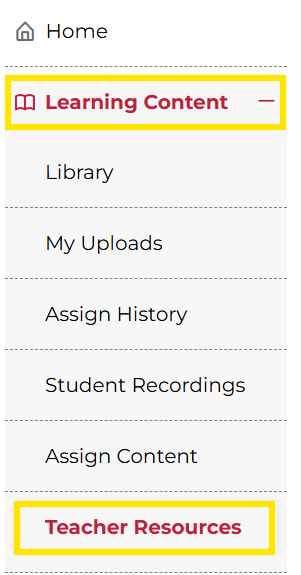
Not what you see? Click to see the old UI view.
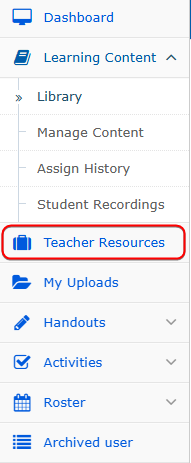
Access teacher versions from the "Teacher Resources" tab on the left-hand side of your FluencyLink interface.
Click any Table of Contents item to see all associated content hierarchically organized.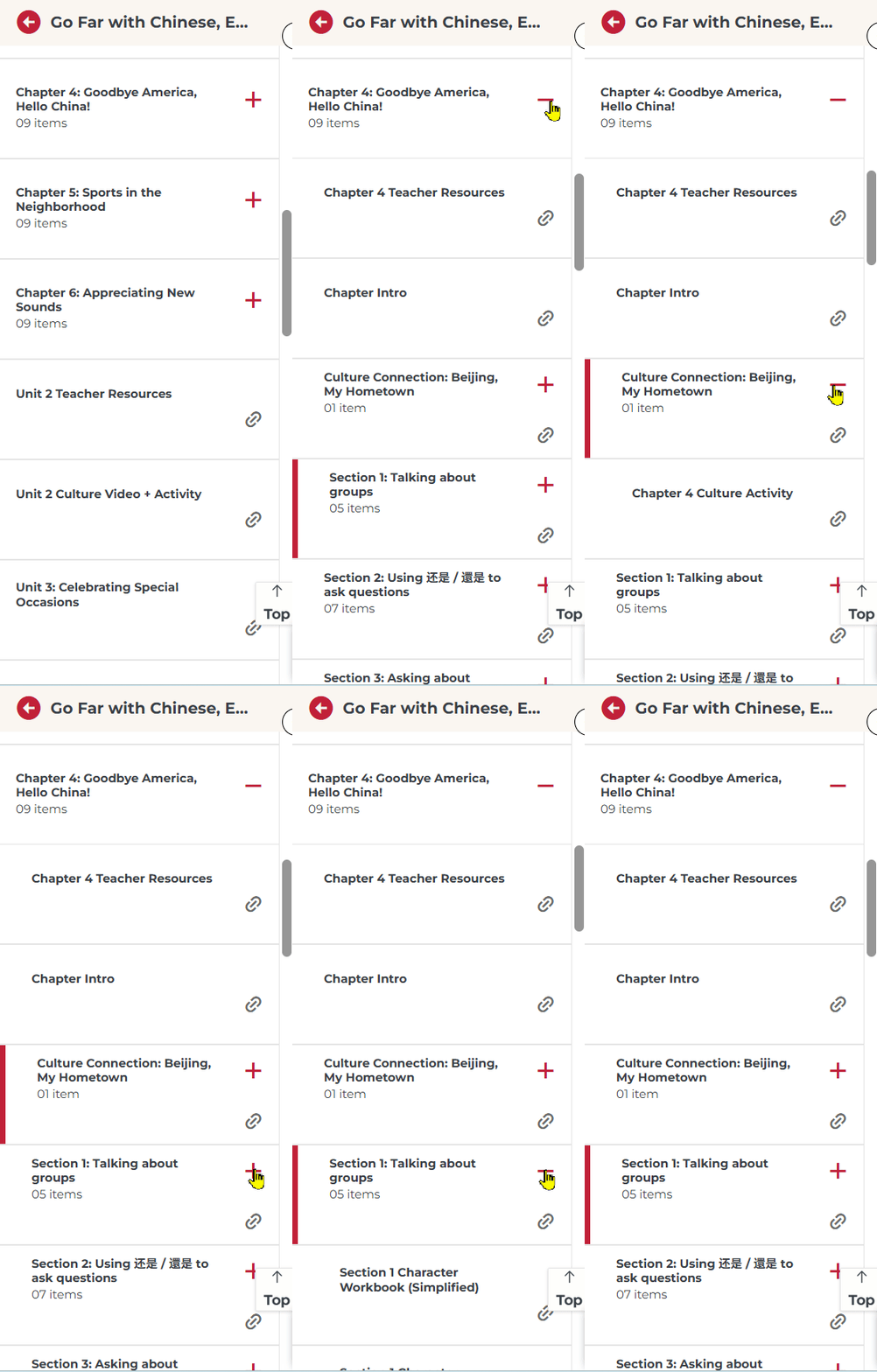
Not what you see? Click to see the old UI view.

Click the ToC arrow button to show or hide the Table of Contents.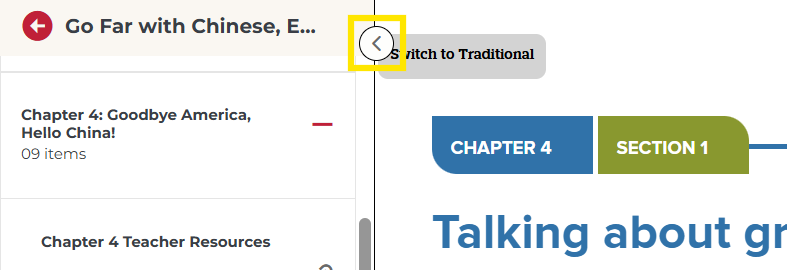
Not what you see? Click to see the old UI view.
Course+ content is responsive to fit any size screen.

Use your browser's zoom function to increase or decrease text size.

Course+ content is downloadable to our iOS and Windows apps for secure offline study. Search for "FluencyLink" on the iOS or Windows App stores.
Switch between Simplified and Traditional character sets by clicking the button in the upper left-hand corner of textbook content.

Show or hide teacher notes (only visible in Teacher versions) by clicking the buttons marked "Teacher Notes."

Interact with newly-interactive textbook activities in several formats. Click to answer multiple-choice questions, rearrange sentences, and drag-and-drop words and images. Work is infinitely repeatable and saved for individual users but is not sent to teacher gradebooks. 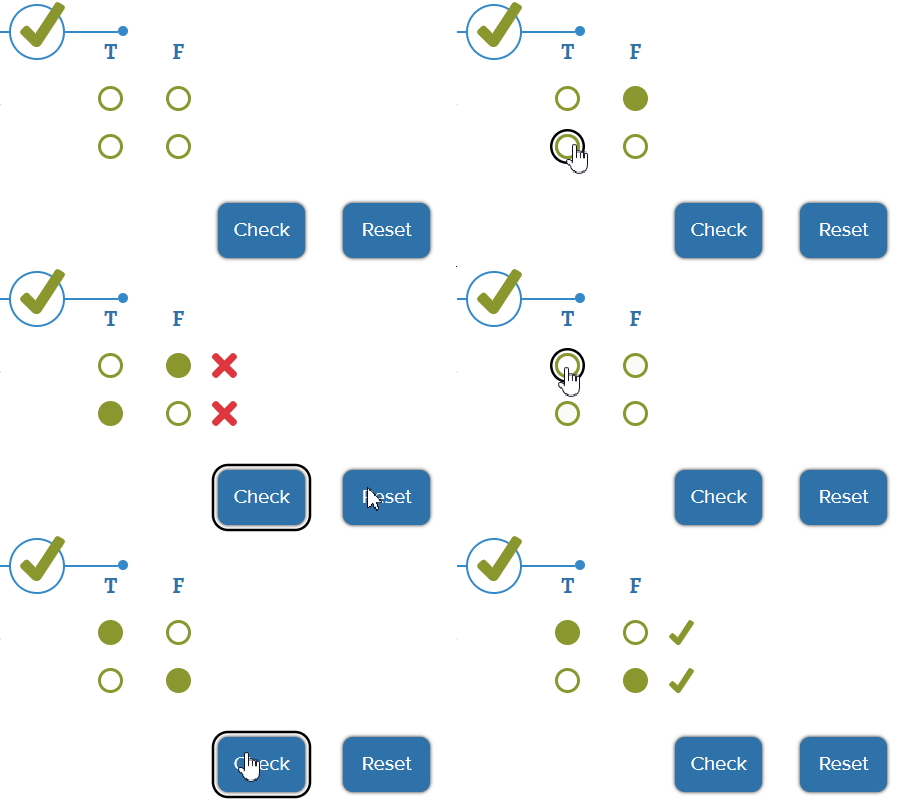

Stream audio by clicking the audio icons. Download audio or adjust audio speed by clicking the menu button at the right side of the audio pop-up.
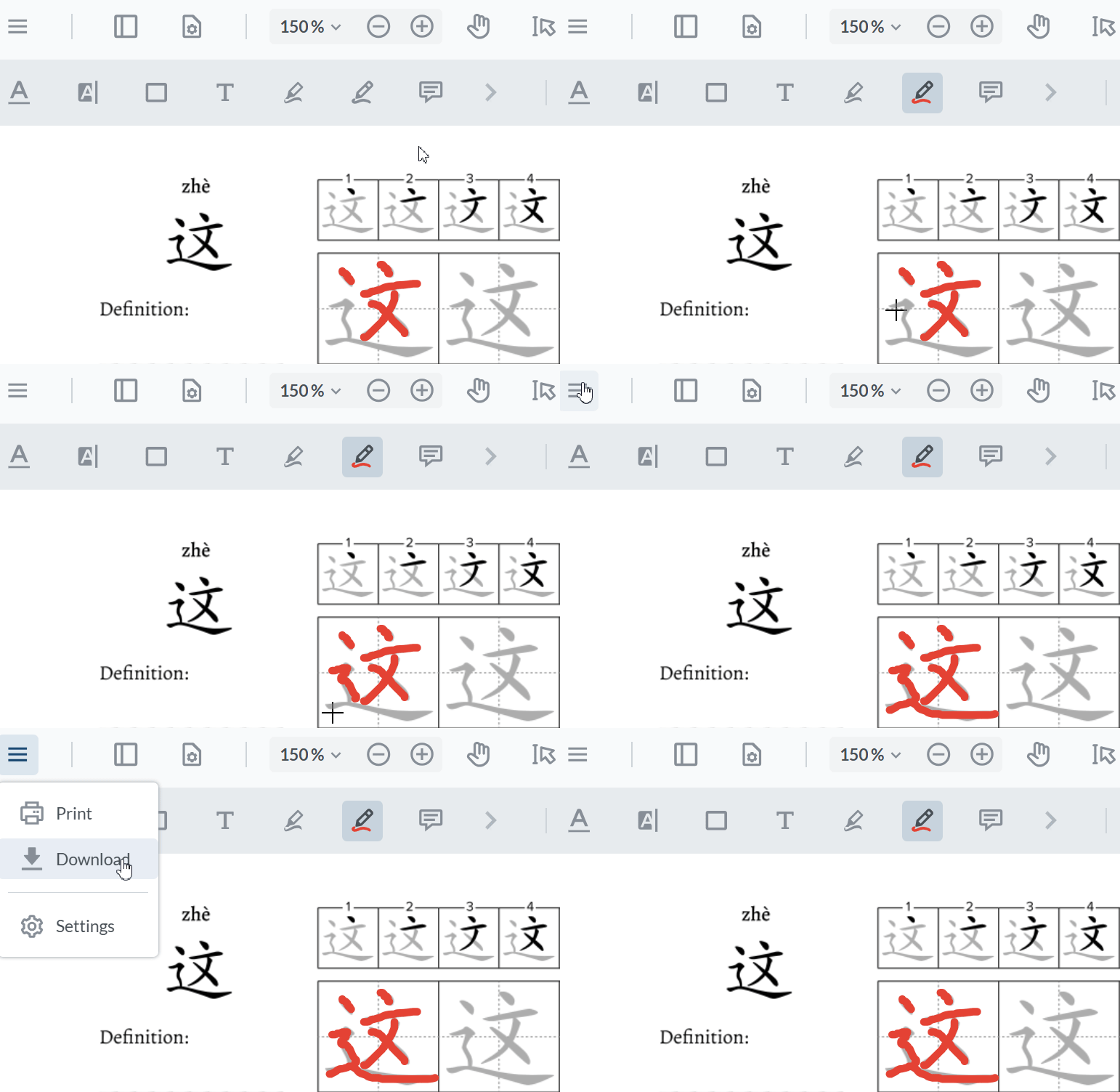
Annotate Worksheets and Character Workbook pages with a mouse, touchscreen, or stylus; then, print or download annotated pages.
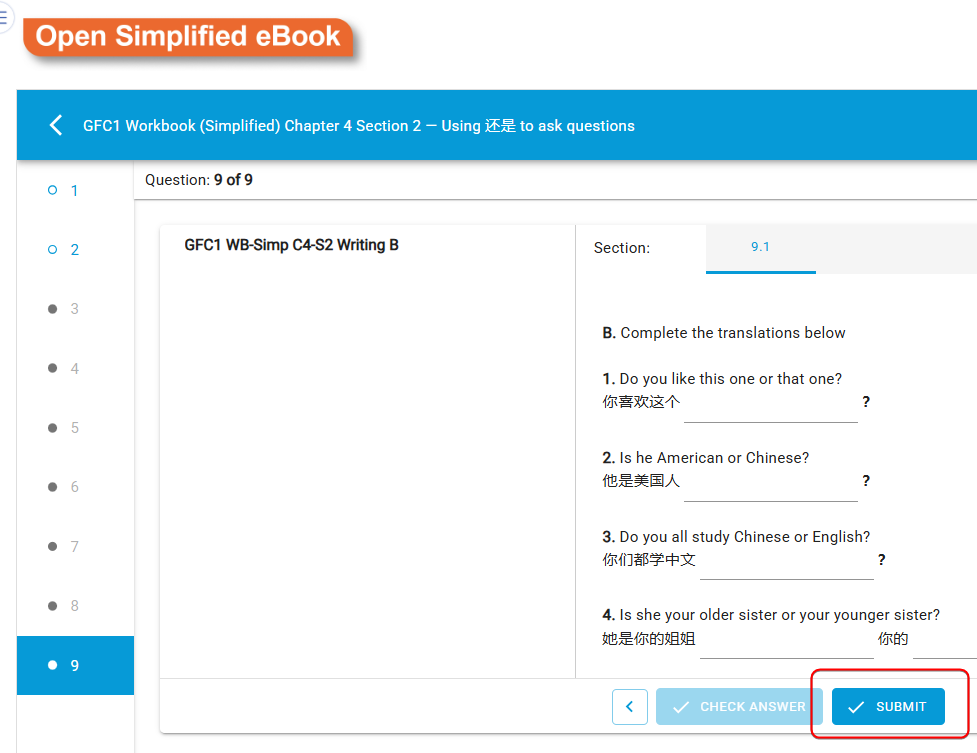
Workbook activities have been included in the Table of Contents at their point-of-use, along with buttons to open the Simplified and Traditional eBooks.
NOTE: To submit work to the teacher gradebook, students must click "Submit" from the last question in each Activity. Students do not need to attempt or complete every question, but they do need to navigate to the last question in the Activity in order to submit.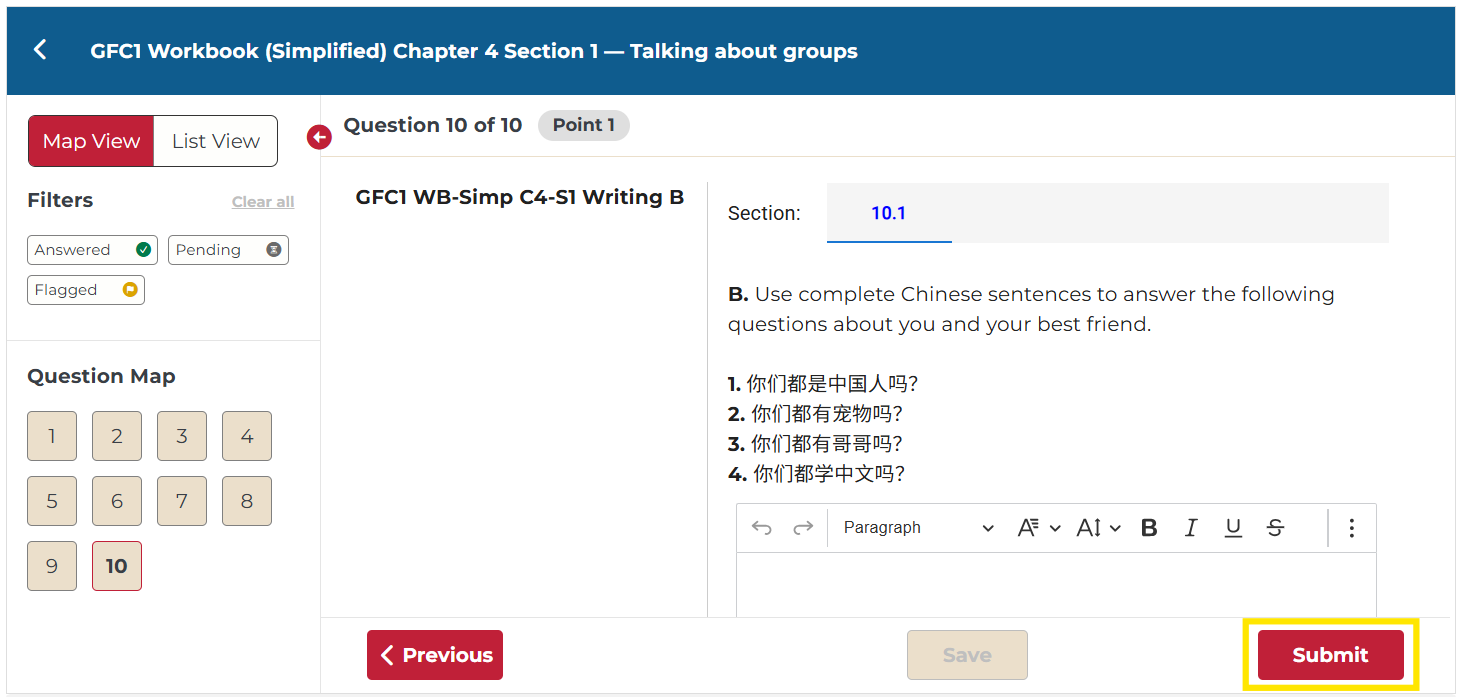
Not what you see? Click to see the old UI view.
Find video resources and their associated activity. Toggle English, Simplified, Traditional, or Pinyin subtitles on or off and adjust the video speed.

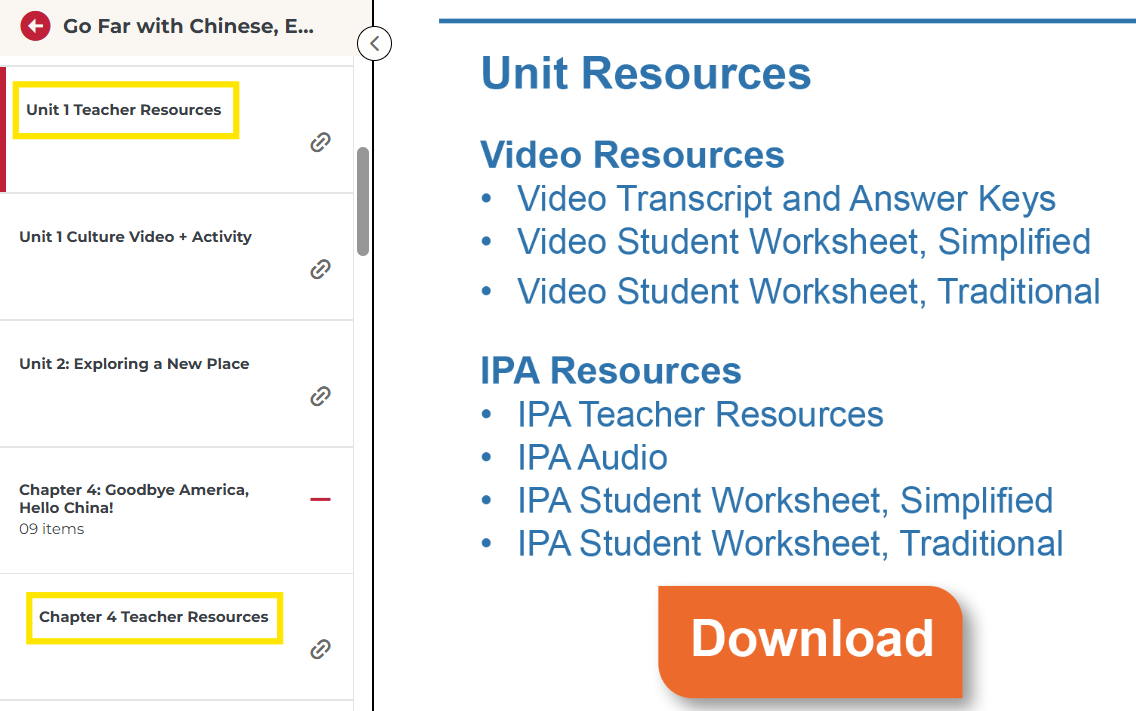
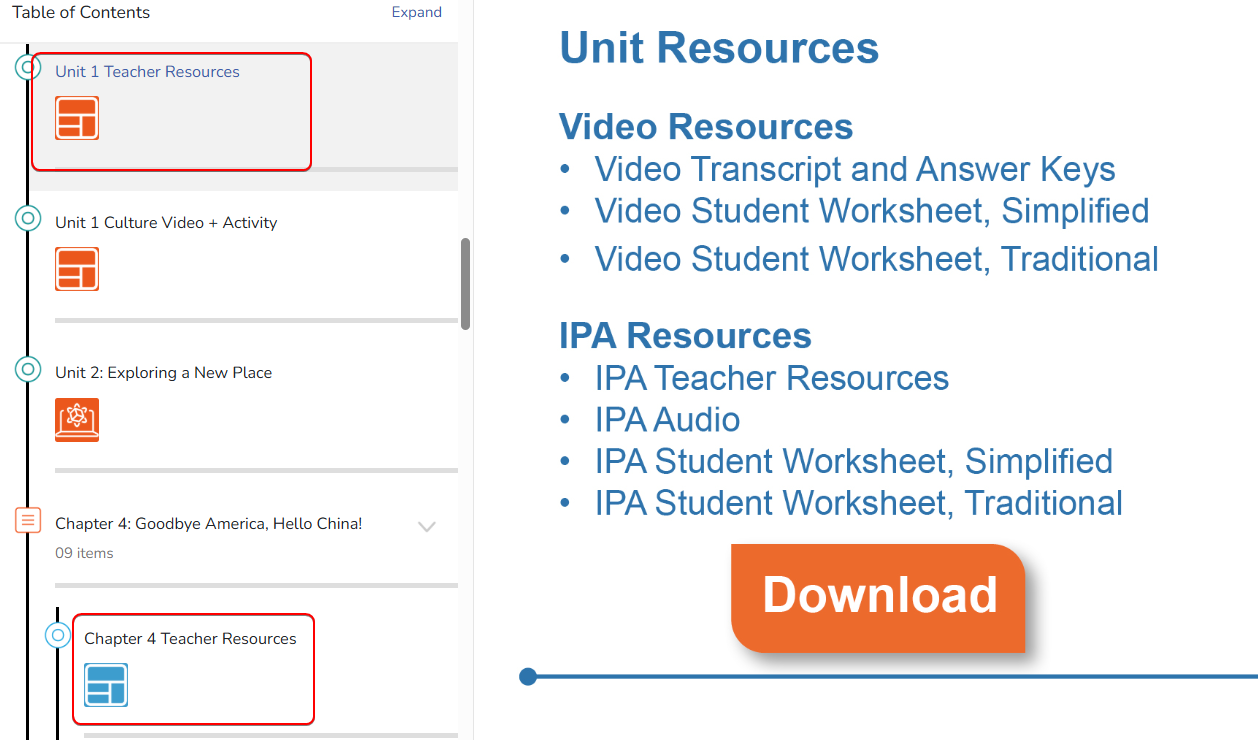
Download Teacher Resources (only visible in Teacher versions) associated with every chapter and unit, including IPAs, right from the Table of Contents.
Not what you see? Click to see the old UI view.
Was this article helpful?
That’s Great!
Thank you for your feedback
Sorry! We couldn't be helpful
Thank you for your feedback
Feedback sent
We appreciate your effort and will try to fix the article