Activities
TABLE OF CONTENTS
Interface
This guide will cover what you can find under the Library and Activity tabs and the Notifications on your FluencyLink student account.

Not what you see? Click to see the old UI view.
This guide will cover what you can find under the Library, Activities, and Notifications tabs on your FluencyLink student account.

Library
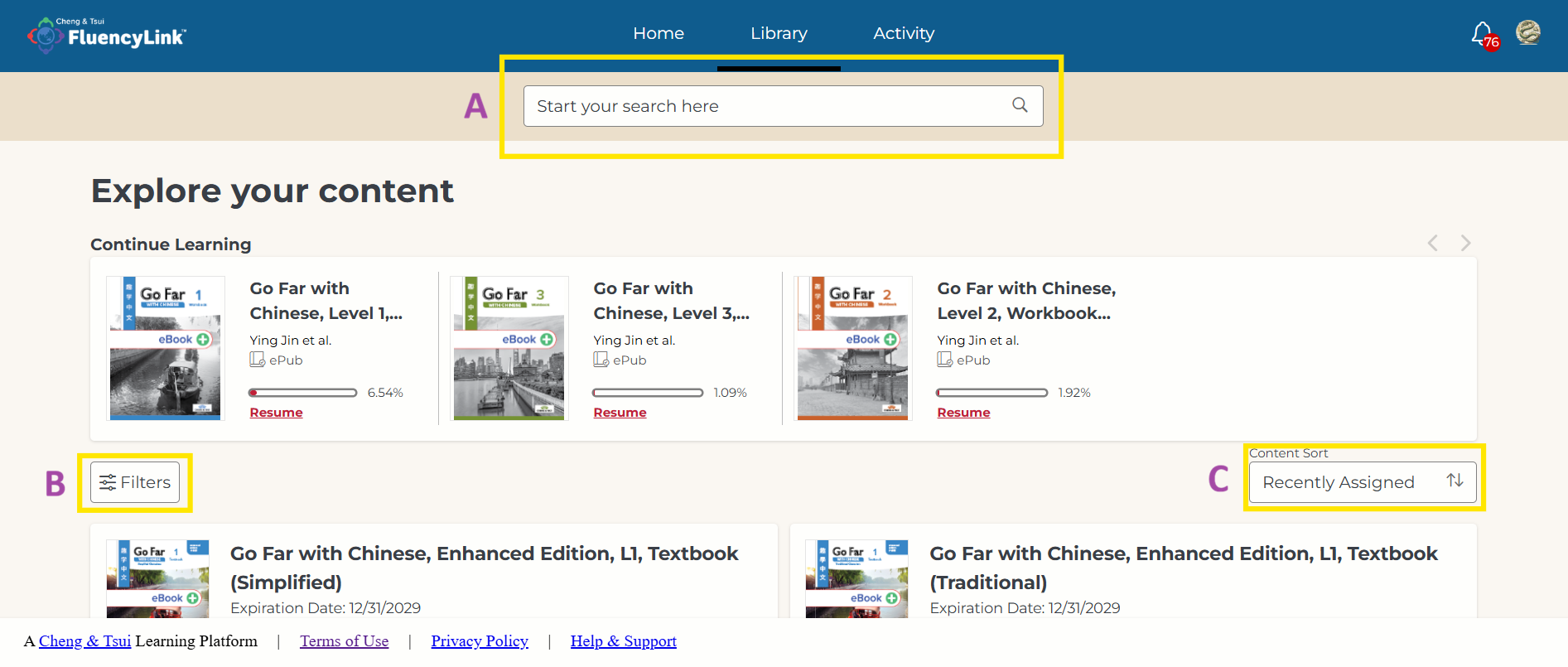
A. Search Bar: Type to search the Library contents by title.
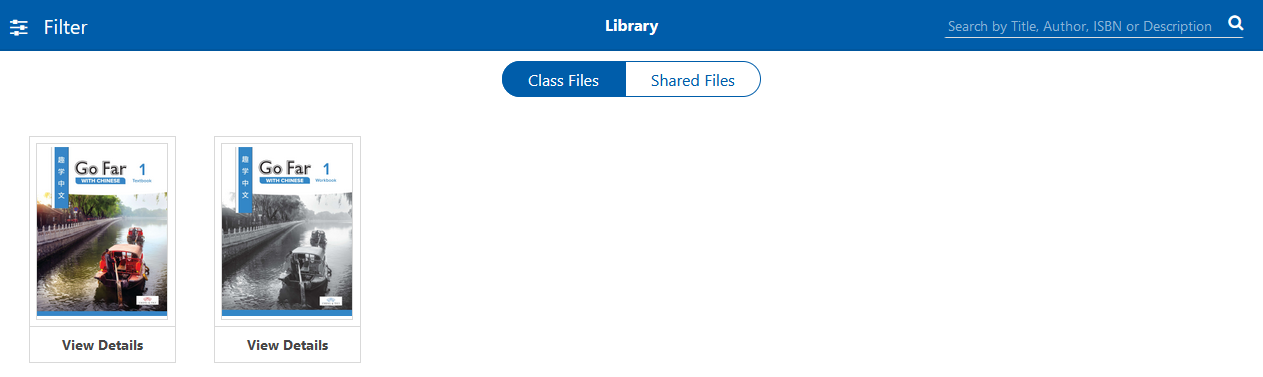
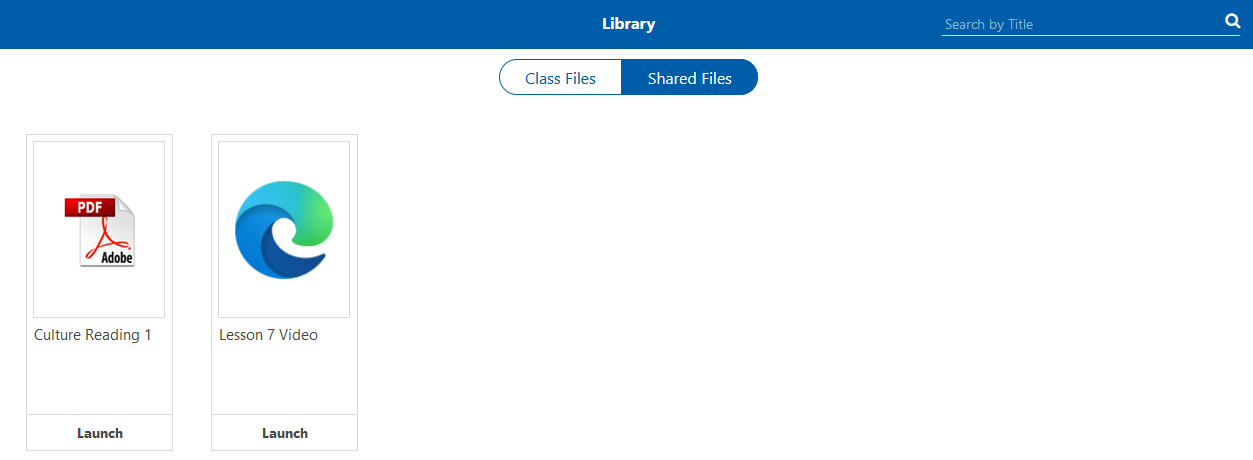
B. Filters: Click here and use the check boxes to filter by shared content or expired content. Shared content refers to files uploaded by your teacher.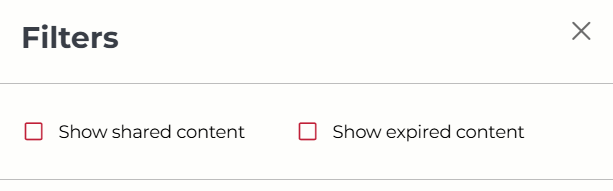
C. Sort: Click to switch the sort order between Recently Added, A-Z, or Z-A.
Not what you see? Click to see the old UI view.


You will receive notifications on your account for things such as content being assigned or removed, and activities being assigned or evaluated. Click on the bell icon in the top right corner to access notifications.
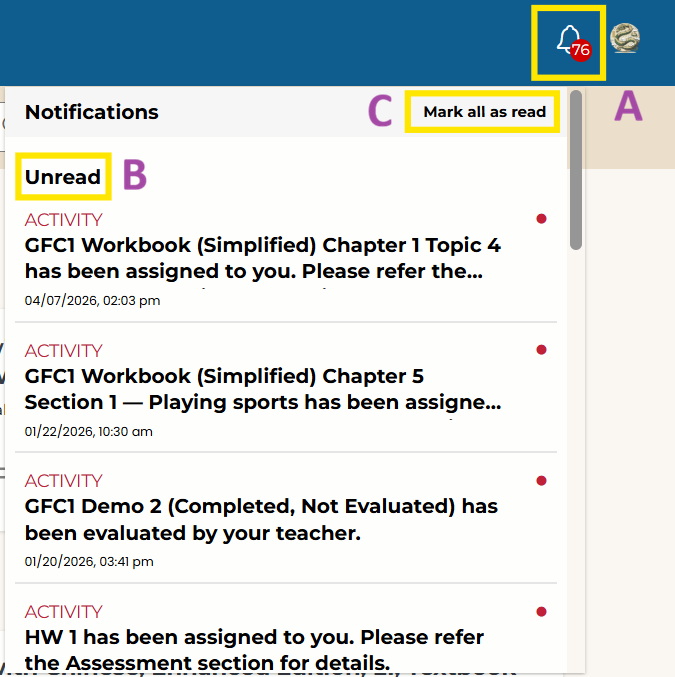
A. Notification Bell: The number in the red circle indicates the total number of unread notifications.
B. Unread Notifications: Unread notifications are in bold. Selecting a particular notification will mark it as read and take you to the relevant content or activity.
C. Mark All As Read: Click this to mark all notifications as read in bulk.
Not what you see? Click to see the old UI view.
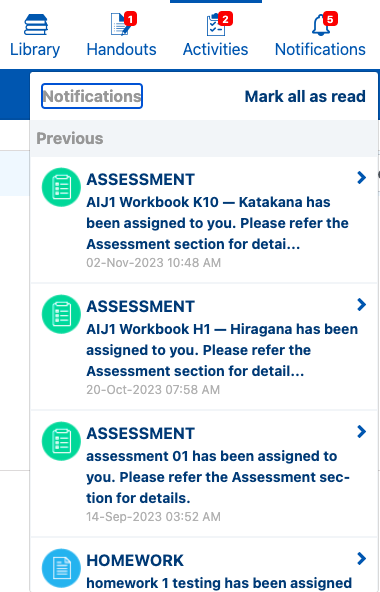
The number in the red box indicates the total number of unread notifications. Unread notifications are in bold.
Selecting a particular notification will mark it as read and take you to the relevant content or activity. You may also choose to “mark all as read.”
Activities
Activities consist of sets of interactive exercises, such as the ones you’d see in your workbook. Some questions are automatically scored and others need to be scored by your teacher.
They are organized by Due, Missed, Submitted, and Graded.
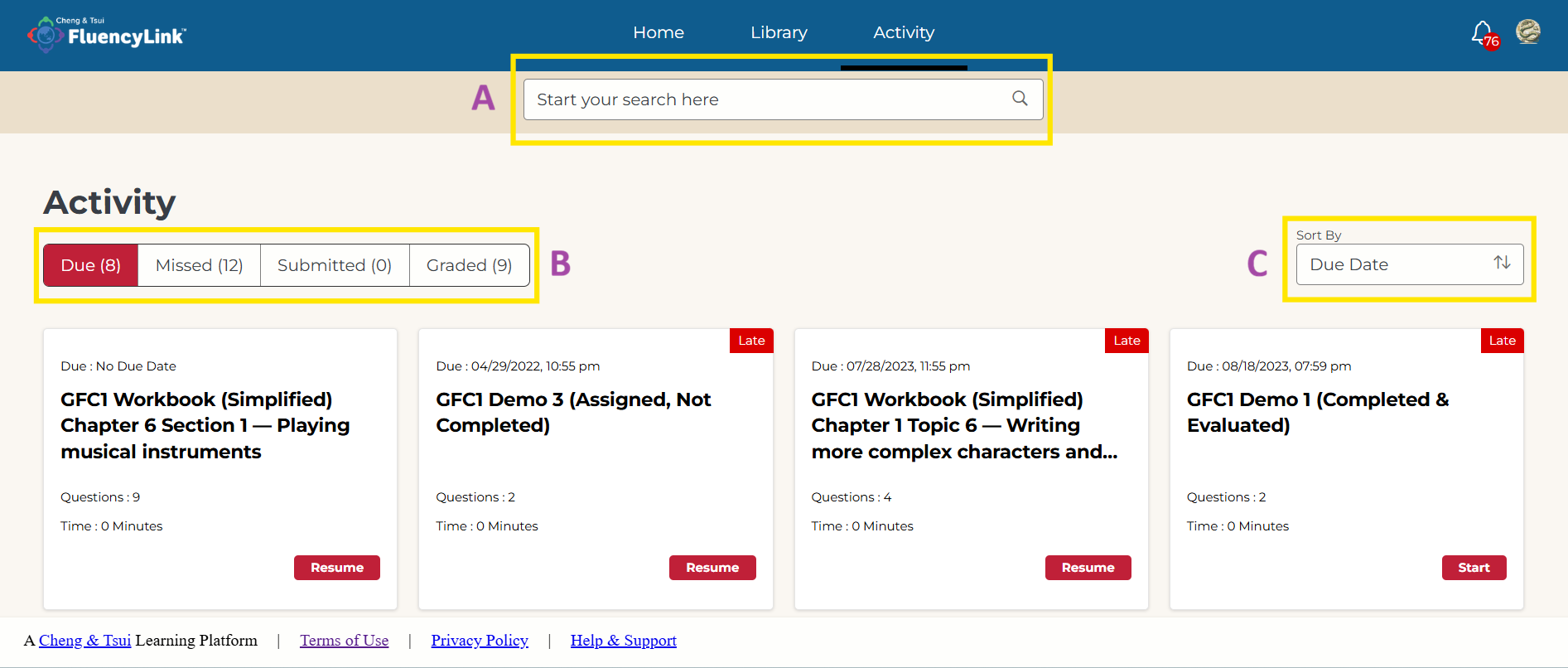
A. Search Bar: Type to search by Activity title.
B. Categories: Activities are organized by Due, Missed, Submitted, and Graded.
C. Sort: Click to switch the sort order.
- Due & Missed Activities: Sort by Due Date, Assigned Date, or Title
- Submitted Activities: Sort by Submission Date or Title
- Graded Activities: Sort by Graded Date or Title
Not what you see? Click to see the old UI view.
Activities are organized by Due Activities, Missed, Submitted, and Graded.


Due Activities
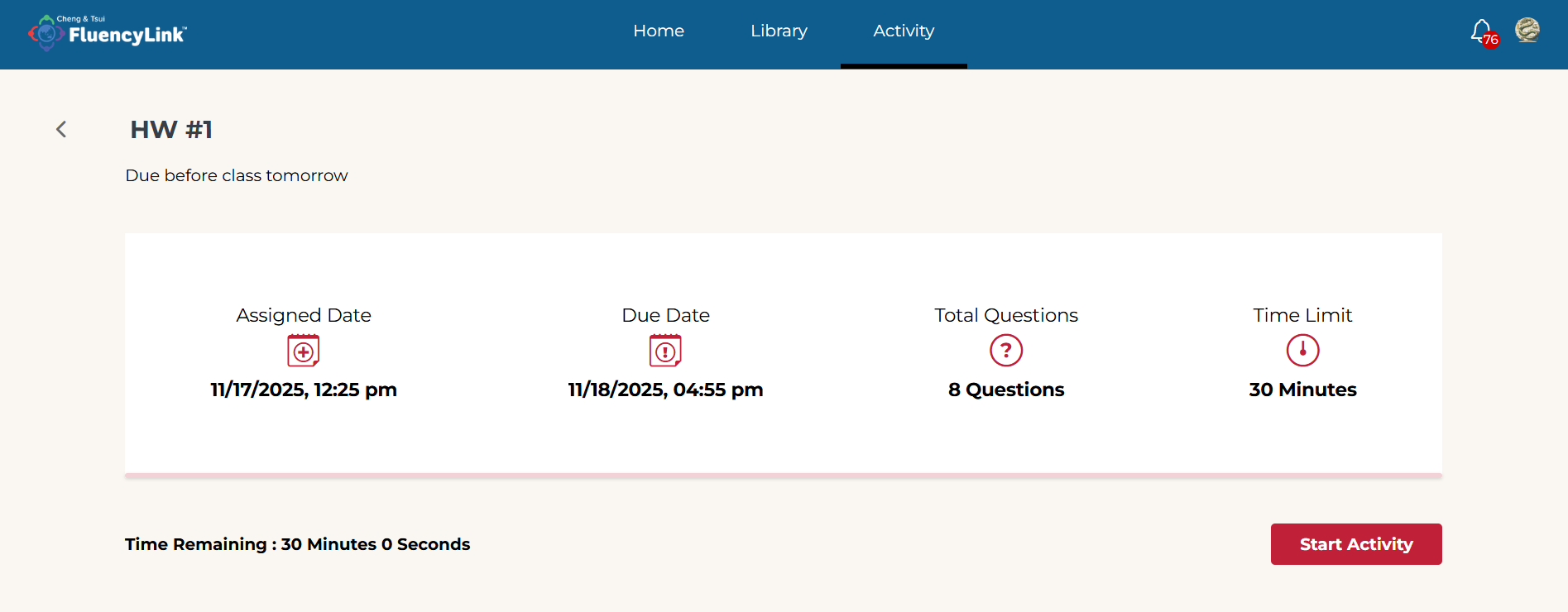
Available activities are ones that have been assigned and can be completed now. The due date and assigned date are shown at the bottom.
Select an activity to open it. To begin, click the Start Activity button in the bottom left corner. Activities already in progress will say Resume Activity instead.
Not what you see? Click to see the old UI view.
Select an activity to open it. To begin, click the Start Activity button in the bottom left corner. Activities already in progress will say Resume instead.

Activities may have different settings that are decided by the teacher. For example:
Time limit or no time limit
Ability to attempt a question multiple times
Ability to check answers during the activity
Ability to skip questions and return later
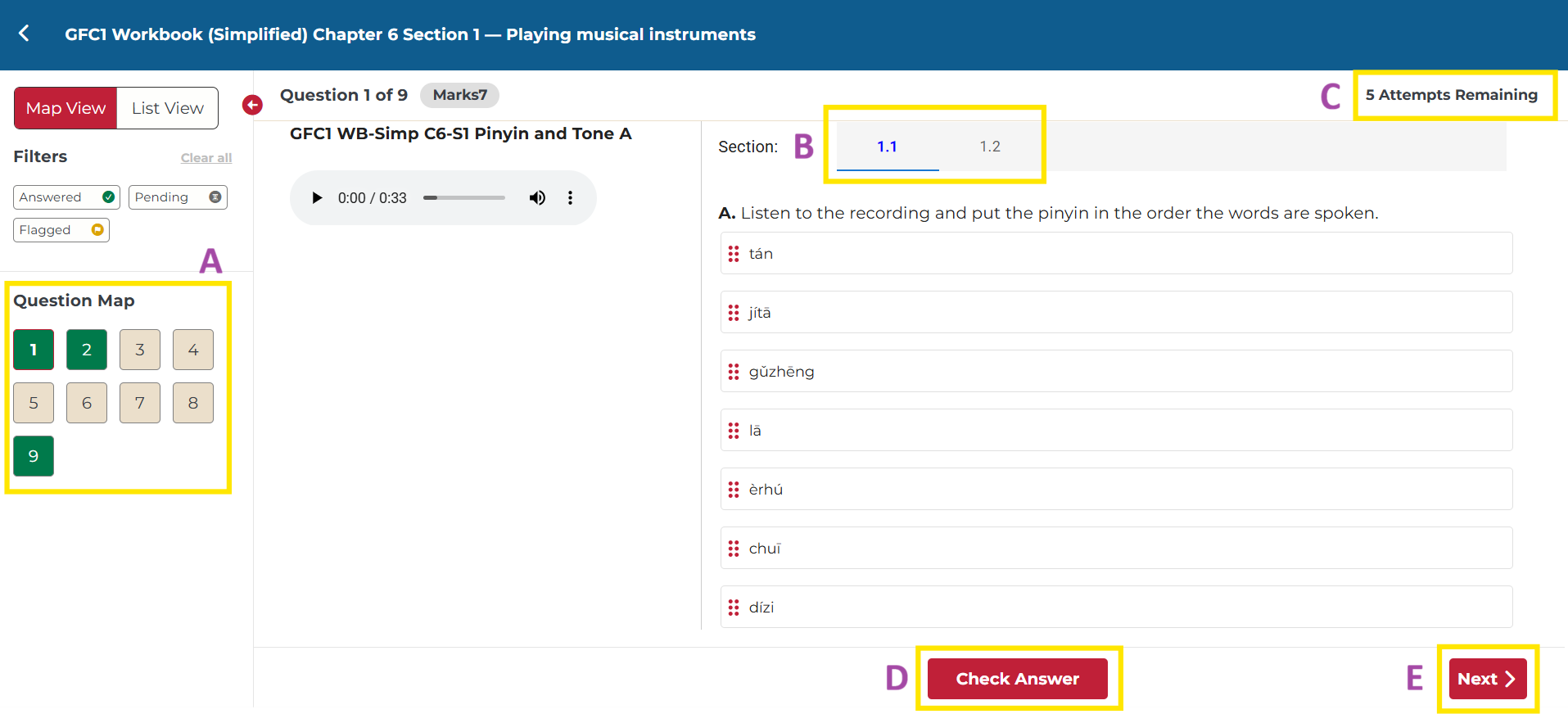
A. Question Map: Question numbers are shown on the left. Select a number to jump to that question.
- Completed AND partially completed questions are indicated in green.
- Questions with no progress are indicated in beige
- The current question is outlined in red.
B. Sub-Question Tabs: Some questions are broken up into sections. Select a section to jump to it.
C. Attempts Remaining: If you teacher allows multiple attempts, you will see the number of attempts remaining in the top right. If there is a time limit, you will also see a countdown clock.
D. Save / Check Answer: Select Save or Check Answer when answering the questions to ensure you don’t lose progress.
E. Submit / Next: Click Next in the bottom right to move to the next question. When you are done, the button will change to Submit. Ensure that you have completed all questions before submitting your answers!
Not what you see? Click to see the old UI view.

Question numbers are shown on the left. Select a number to jump to that question.
Completed AND partially completed questions are indicated by a filled circle. Questions with no progress are indicated by an unfilled circle. The current question is highlighted in blue.

Some questions are broken up into sections. Select a section to jump to it.

IMPORTANT: Select Save when answering the questions to ensure you don’t lose progress. Depending on the test settings, this button may say Check Answer instead.

IMPORTANT: Check that you have completed all questions before submitting your answers.

Text Editor
Some questions require you to enter your answer in a text editor. The text editor supports various formatting options and file attachments. Below are the icons you will see.

Not what you see? Click to see the old UI view.


Missed
Activities that are past the due date and can no longer be completed are shown here. The due date is shown at the bottom.
You will not be able to view the contents of the activity.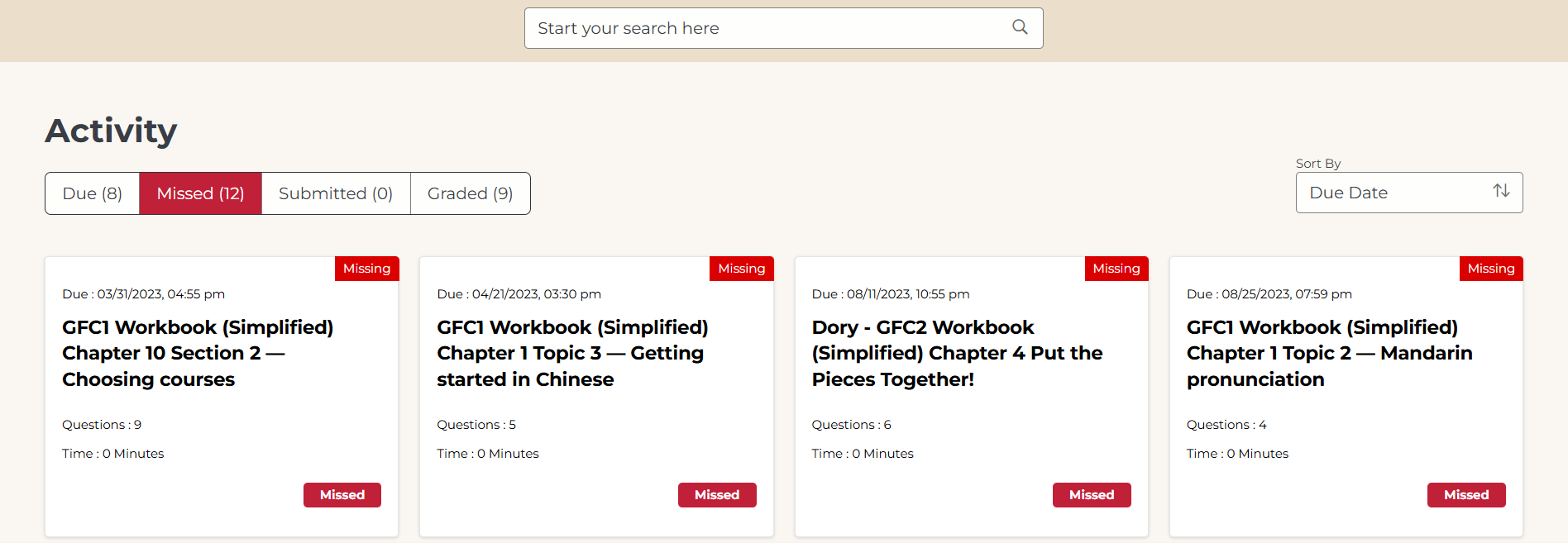
Not what you see? Click to see the old UI view.

Submitted
Activities that have been submitted, but not yet graded, are found here. You can also view the date of submission.
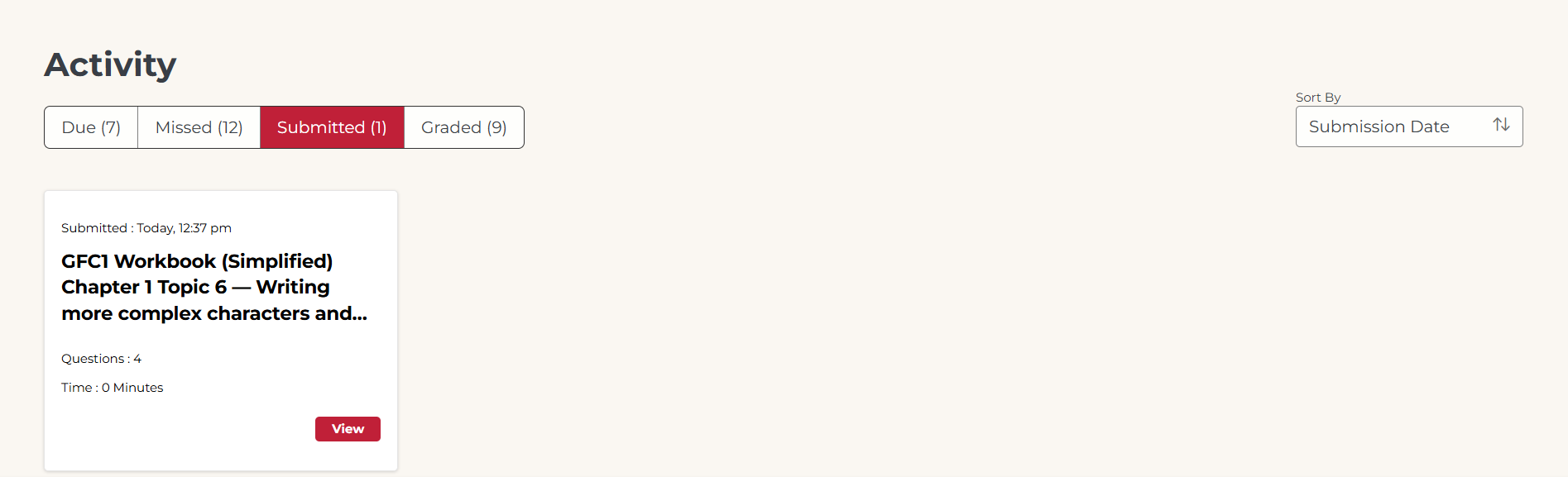
Select the activity to view your responses.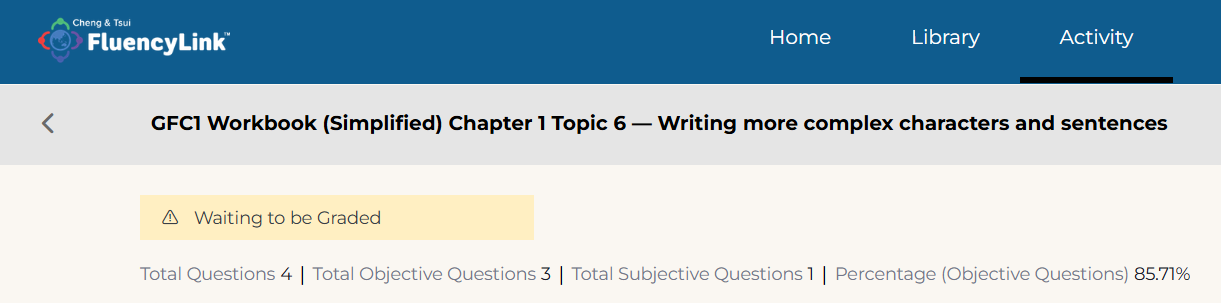
Not what you see? Click to see the old UI view.

Objective questions are ones that are automatically scored. Subjective questions must be scored by the teacher.
Percentage (Objective Questions) is the average score of all automatically scored questions for this activity.
Select an activity to view your submitted answers and the scores of all objective questions.
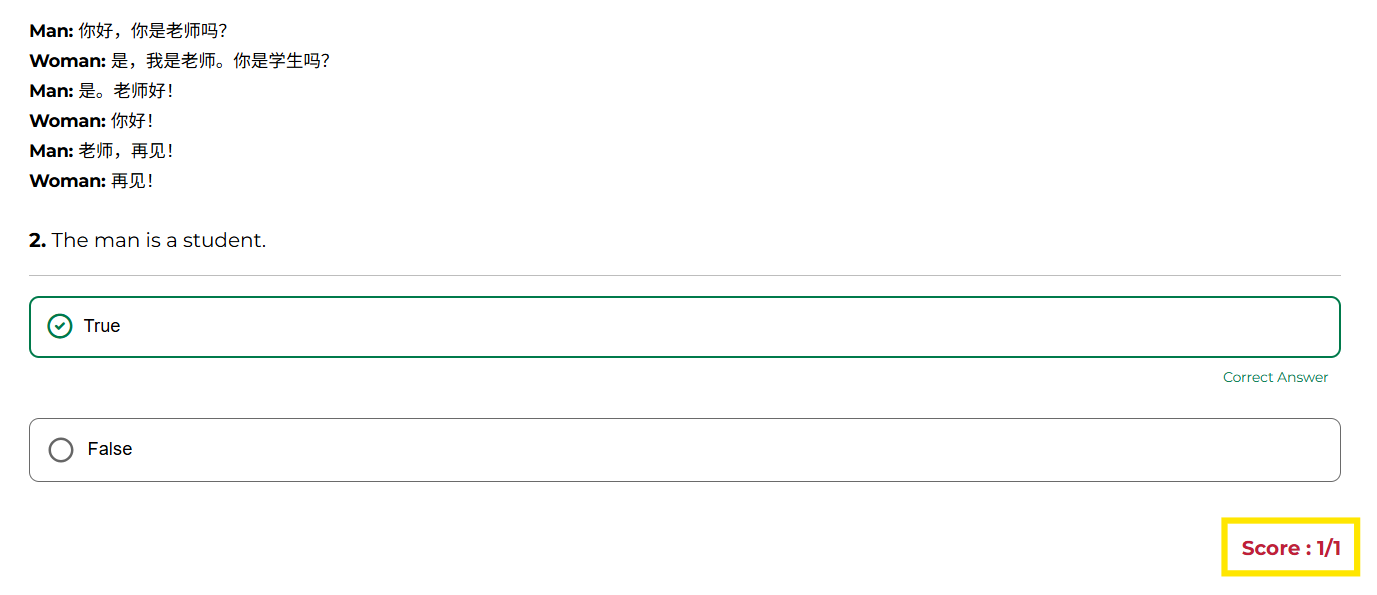
Not what you see? Click to see the old UI view.

Subjective questions will not be scored at this stage. You’ll see a dash next to the score field.
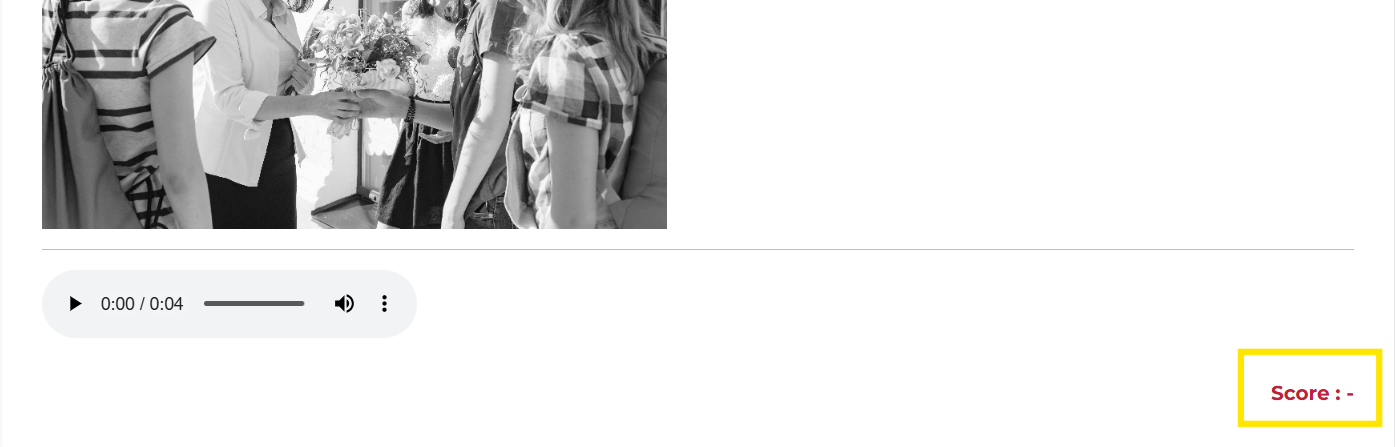
Not what you see? Click to see the old UI view.

Graded
These are activities that have been graded. A score is shown at the bottom. Select the activity to review your responses, scores, and any feedback from the teacher.
The top of the activity will provide an overview with numbers for the following: Result, Total Questions, Correct, Partially Correct, Incorrect, and Skipped.
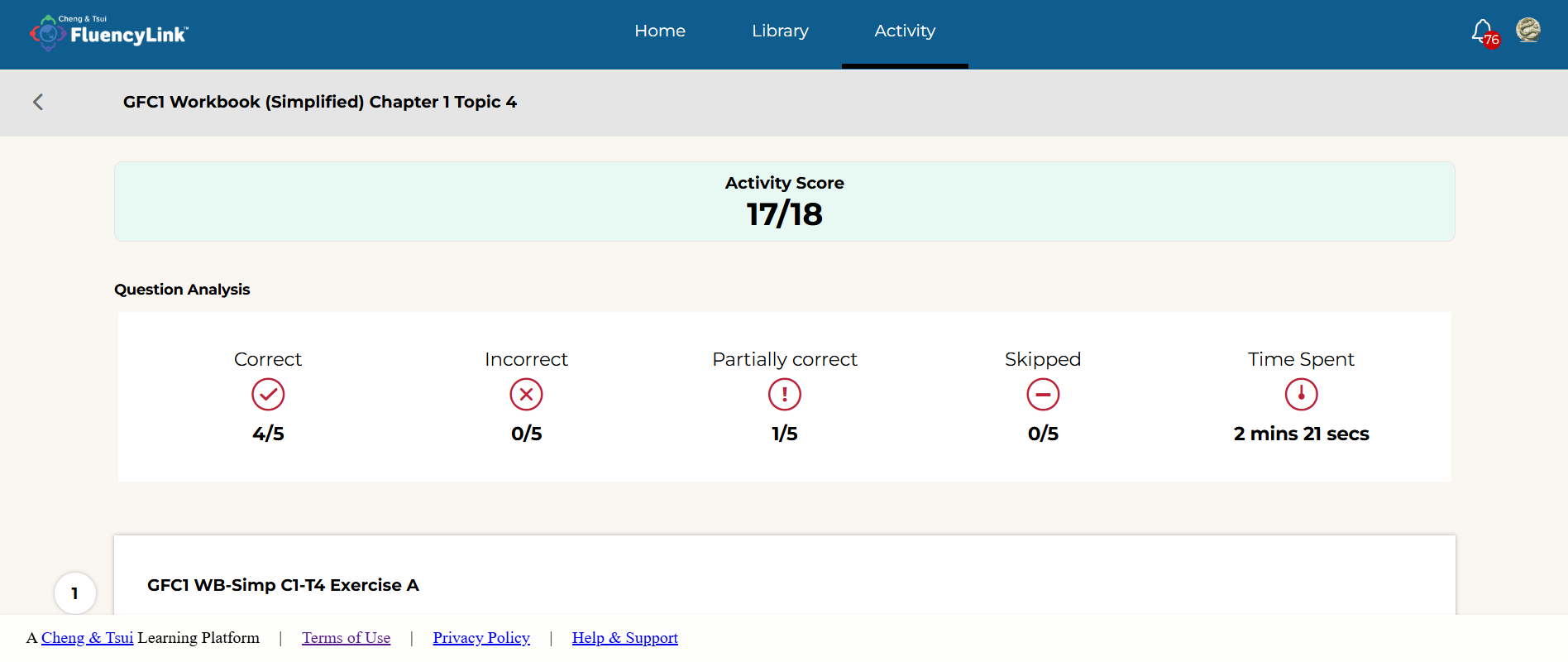
Not what you see? Click to see the old UI view.

Select View Comprehension Sub-Questions to reveal details for a particular question, including any individual question feedback.
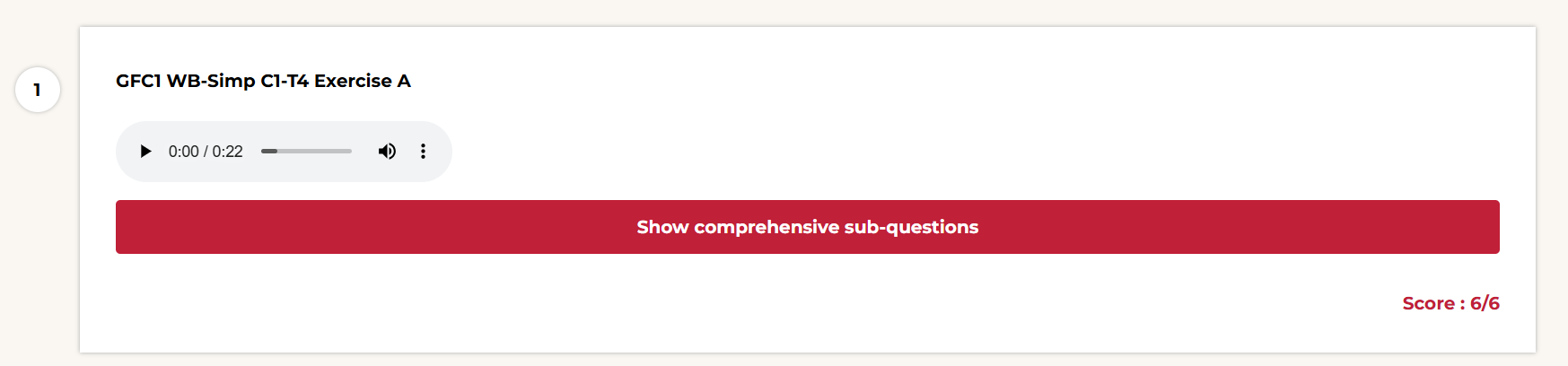
Not what you see? Click to see the old UI view.


Correct answers are marked with a green check. Incorrect answers are marked with a red X.
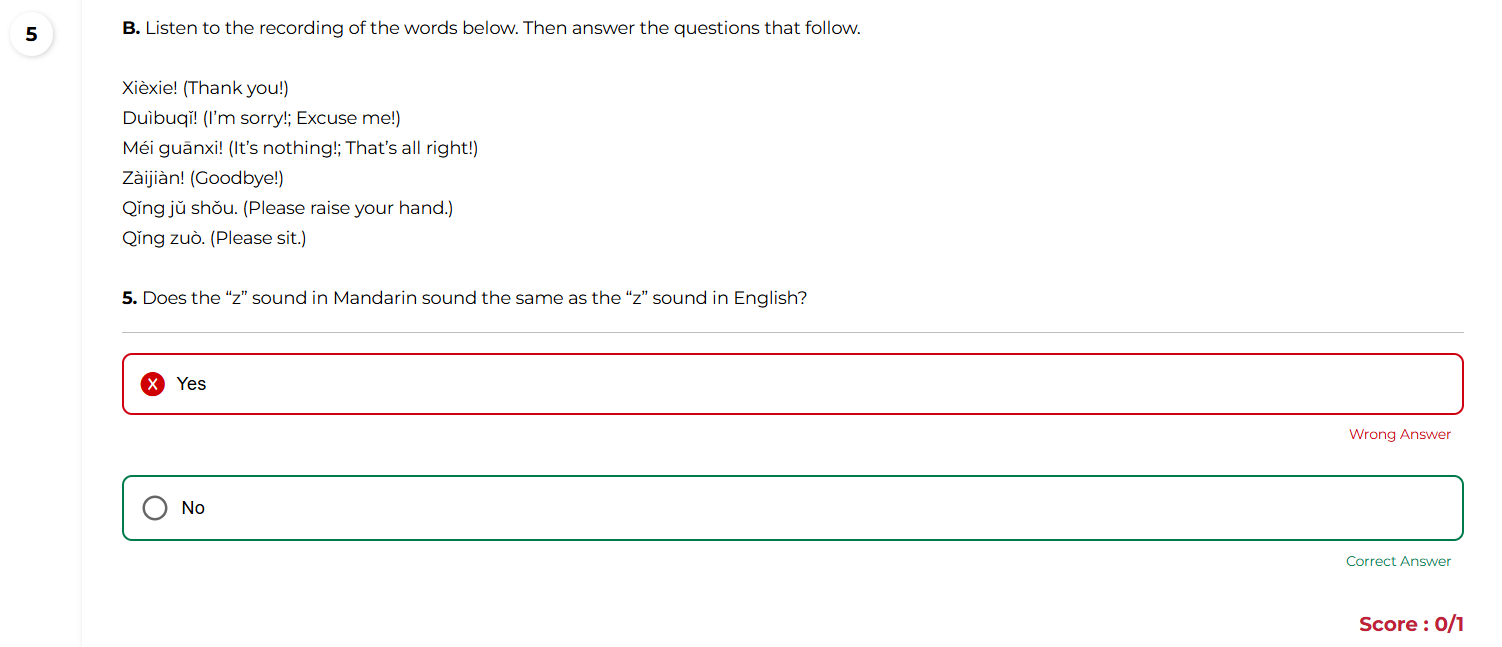
Not what you see? Click to see the old UI view.

An answer key is shown below the question in green text, when applicable.
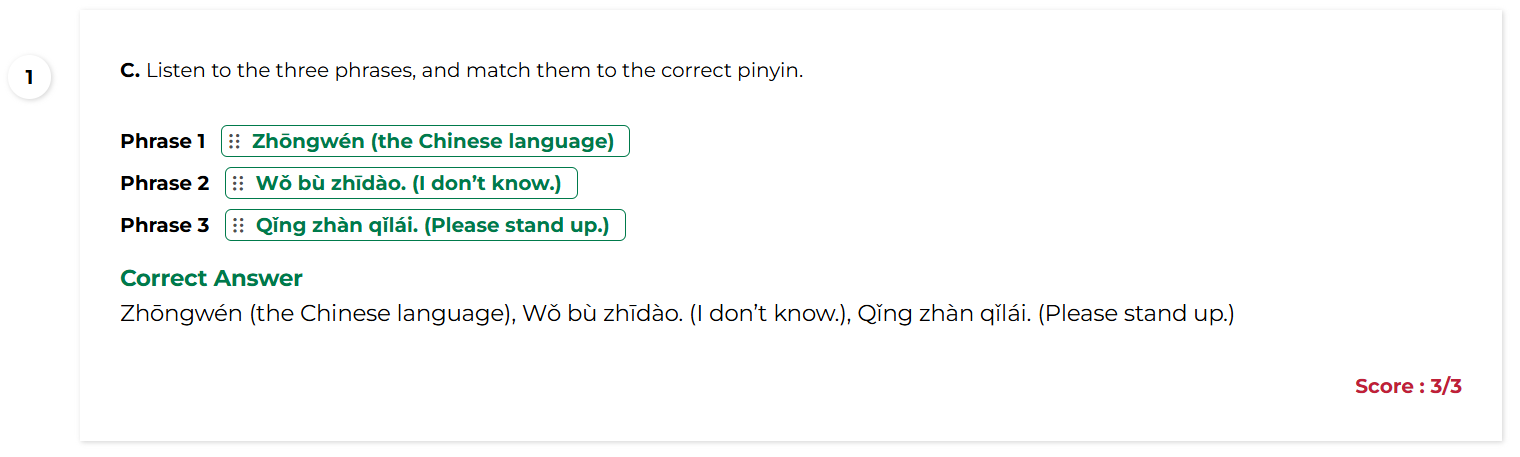
Not what you see? Click to see the old UI view.


Was this article helpful?
That’s Great!
Thank you for your feedback
Sorry! We couldn't be helpful
Thank you for your feedback
Feedback sent
We appreciate your effort and will try to fix the article