School/district admins and teachers can send messages (up to 500 characters) to students through the "Notification" feature. These messages are seen by the student in the Notification section on the Student portal.
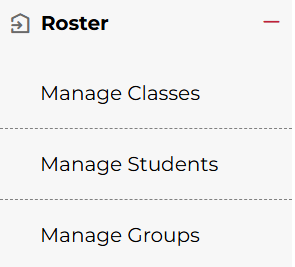
1. Click Roster on the left-hand side menu.
- To notify an entire class, click Manage Classes.
- To notify a specific student, click Manage Students.
- To notify an entire group, click Manage Groups.
Not what you see? Click to see the old UI view.
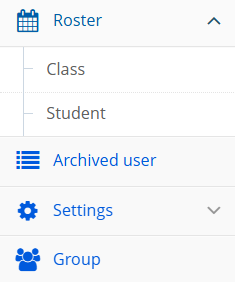
- To notify an entire class, click Roster, then Manage Classes.
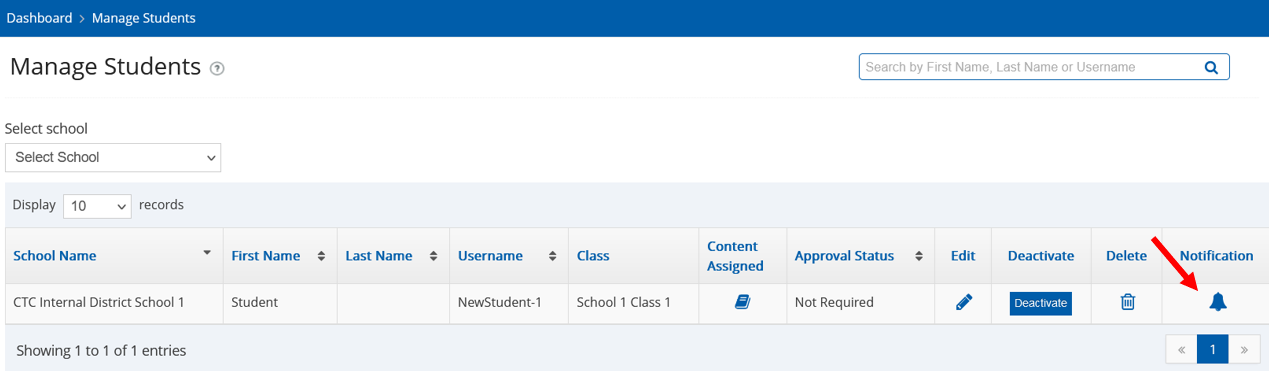
- To notify a specific student, click Roster, then Manage Students.
- To notify an entire group, click Group.
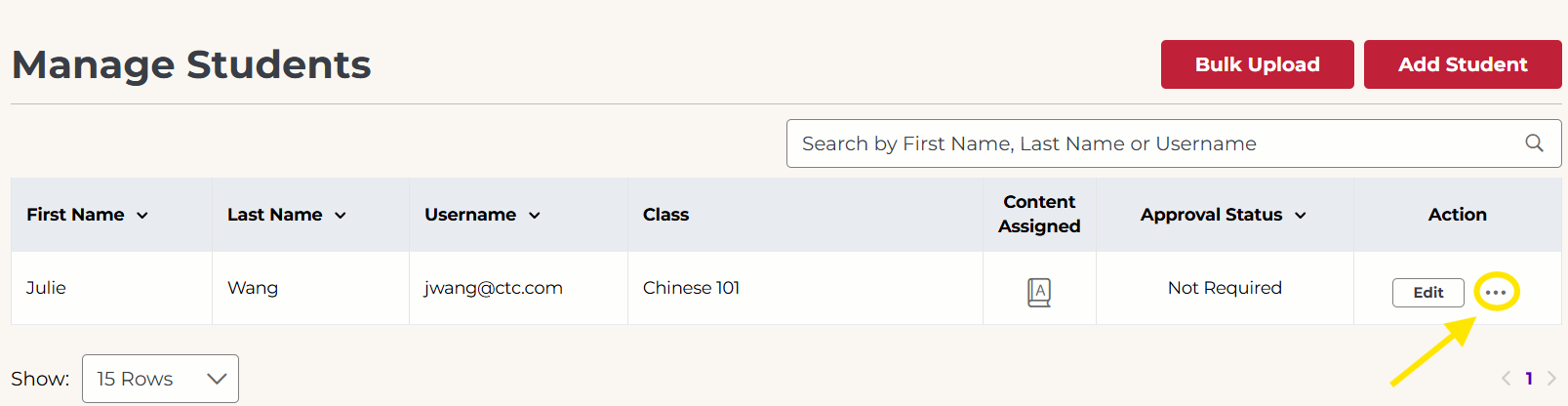
2. On the right side under the Action column, click the 3 dots. Then click the Notification option that pops up.
Not what you see? Click to see the old UI view.
Click on the bell icon in the "Notification" column for the class/student/group to which you wish to send a notification.
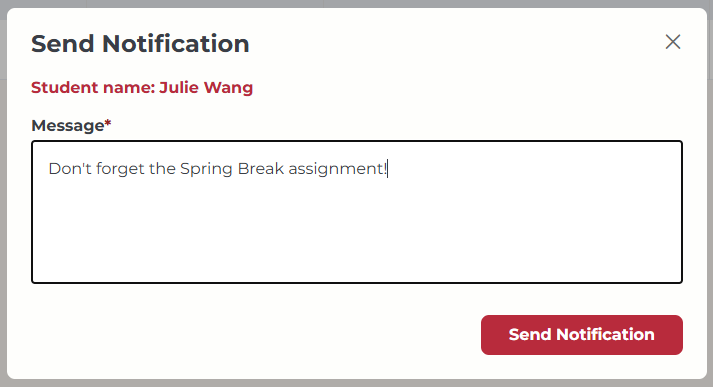
3. Type your message in the box (up to 500 characters), and then click Send Notification.
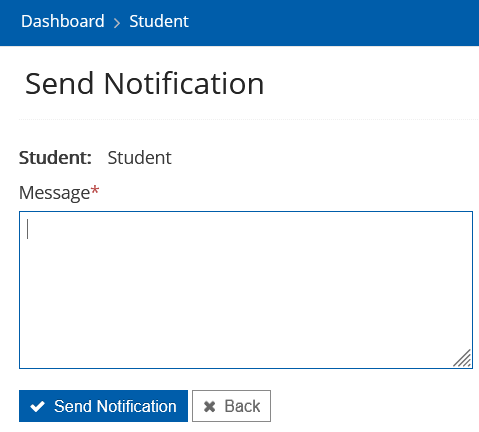
Not what you see? Click to see the old UI view.
Was this article helpful?
That’s Great!
Thank you for your feedback
Sorry! We couldn't be helpful
Thank you for your feedback
Feedback sent
We appreciate your effort and will try to fix the article