TABLE OF CONTENTS
Teachers can reassign activities to the selected students in the following scenarios:
1. To allow students to take the same activity again for improvement and practice. If the student has already attempted the activity which is selected for re-assignation then the currently recorded data will be deleted and will not be retrieved.
2. To allow students to complete the Activity in case they have missed the deadlines or not submitted the activity. Teachers can set the new due date while reassigning the activity.
Students Who Already Submitted
Follow the below steps to reassign the activity if students have already submitted the activity.
1. Log in to the portal.
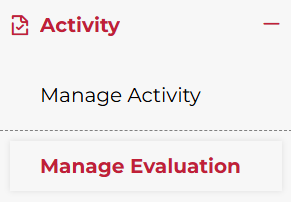
2. Click Activity on the left-hand side menu, then click Manage Evaluation.
Not what you see? Click to see the old UI view.
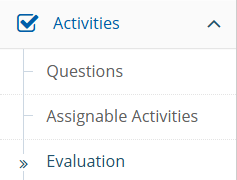
Click 'Activities' on the left-hand side menu. Click 'Evaluation' in the sub-menu.
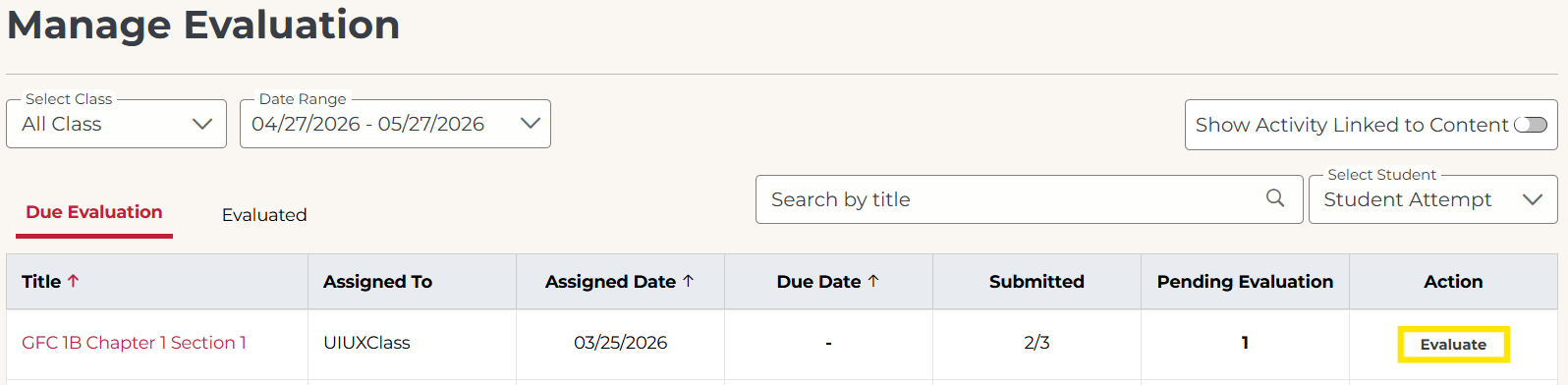
3. Click on the Evaluate button under the Action column for the activity you wish to reassign.
Not what you see? Click to see the old UI view.
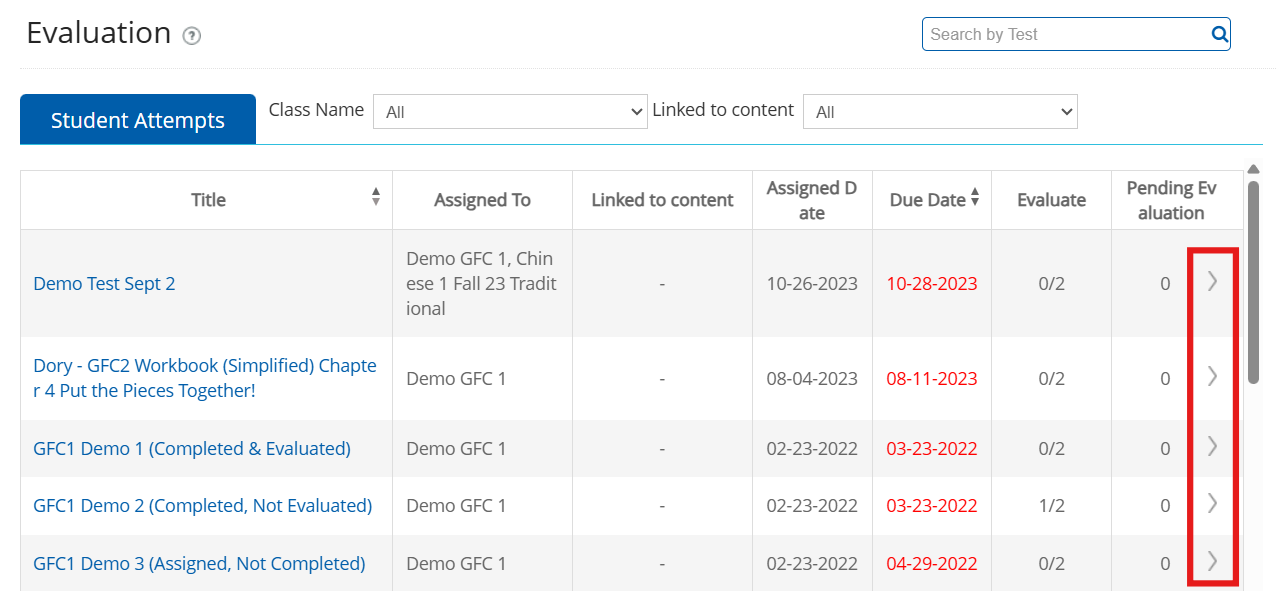
Click on the arrow icon to select the activity you wish to reassign.
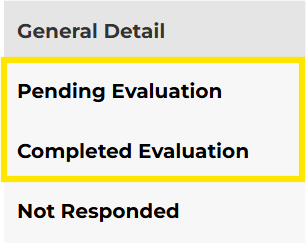
4. On the left menu, select go to either Pending Evaluation or Completed Evaluation.
- Pending Evaluation: Student responses that have not been graded yet.
- Completed Evaluation: Student responses that have already been graded.
Not what you see? Click to see the old UI view.
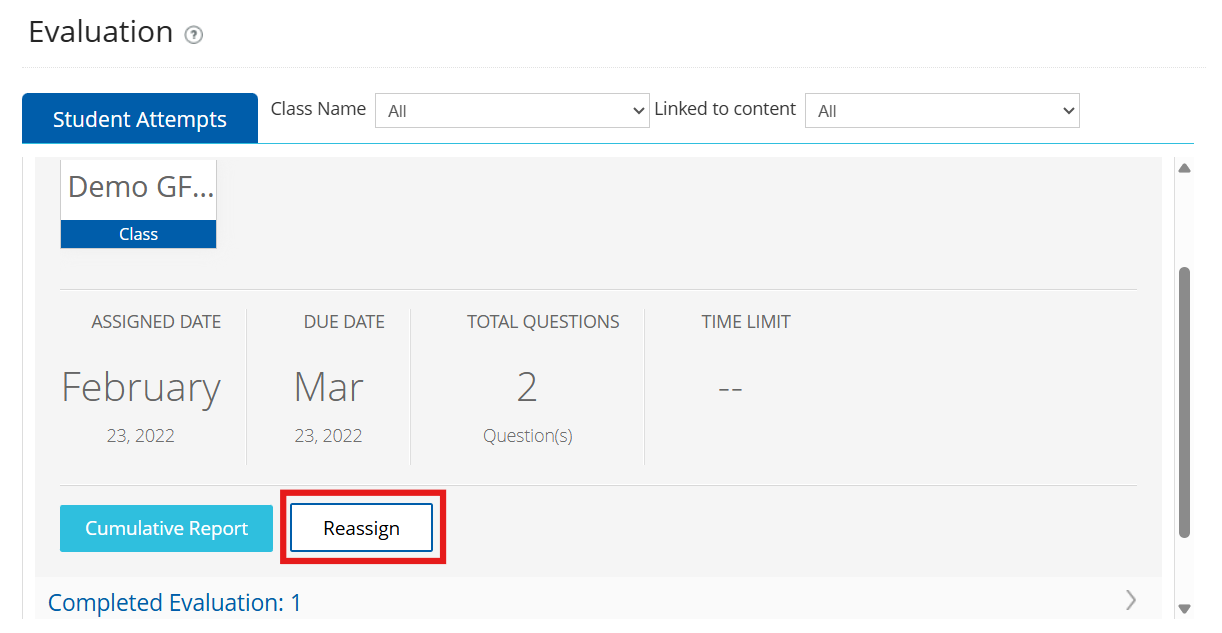
Click 'Reassign'
5. On the left, use the checkboxes to select the students to whom you want to reassign the activity. Use the top checkbox to select all students.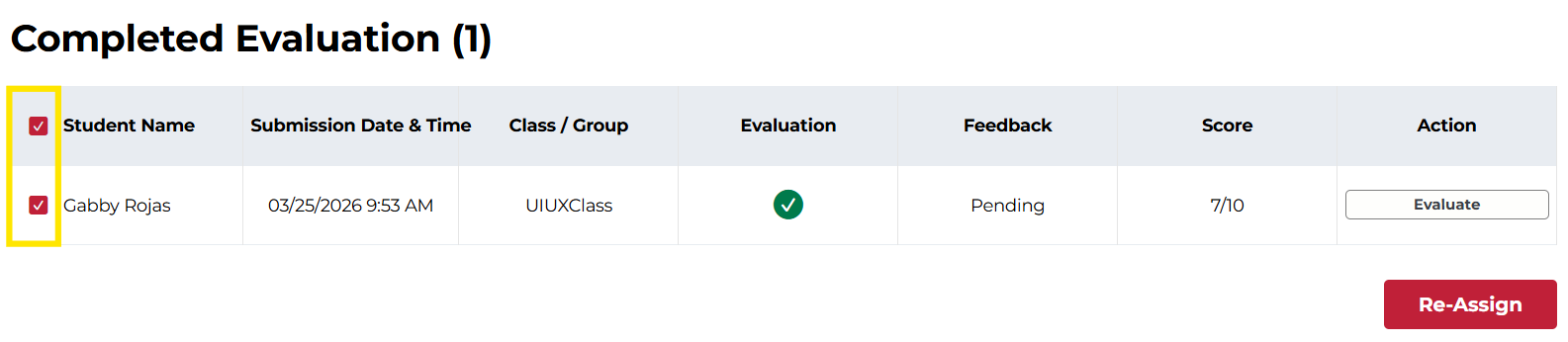
Not what you see? Click to see the old UI view.
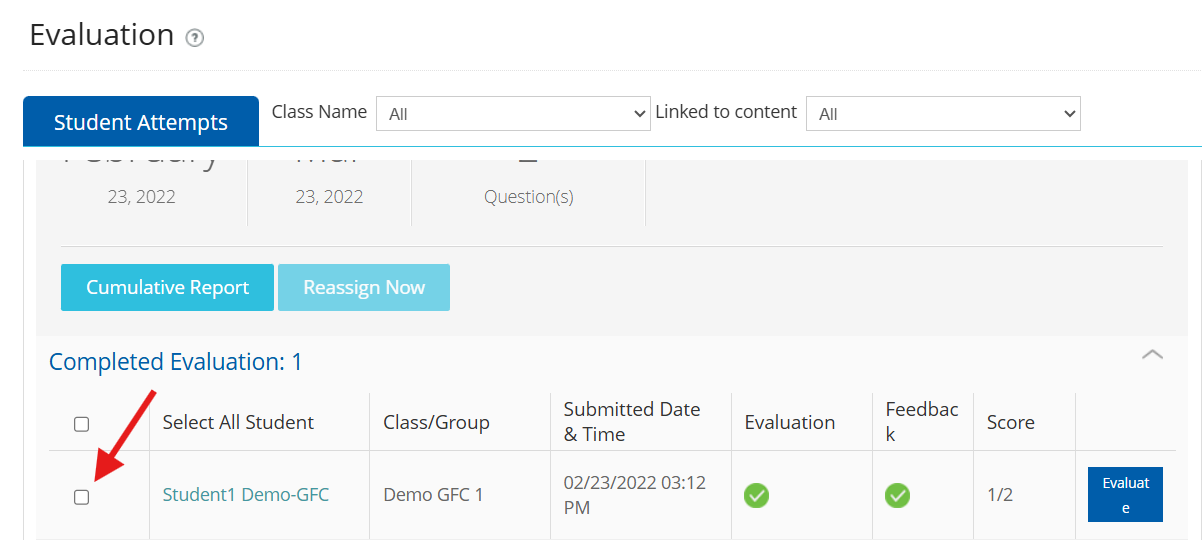
Expand the sections (Completed Evaluation or Pending Evaluation). Select the students to whom you want to reassign the activity using the checkboxes.
6. Click Re-Assign.
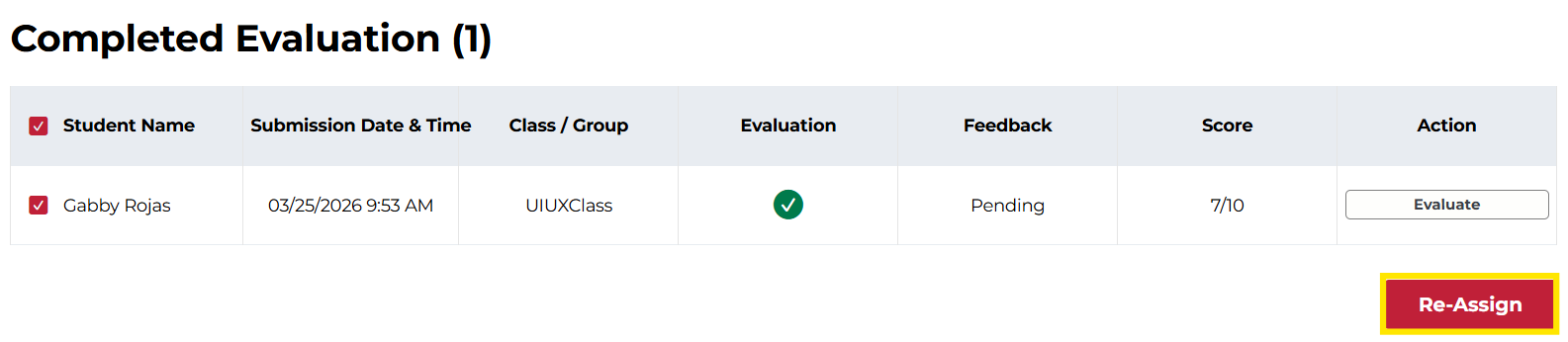
Not what you see? Click to see the old UI view.
Click 'Reassign Now'.
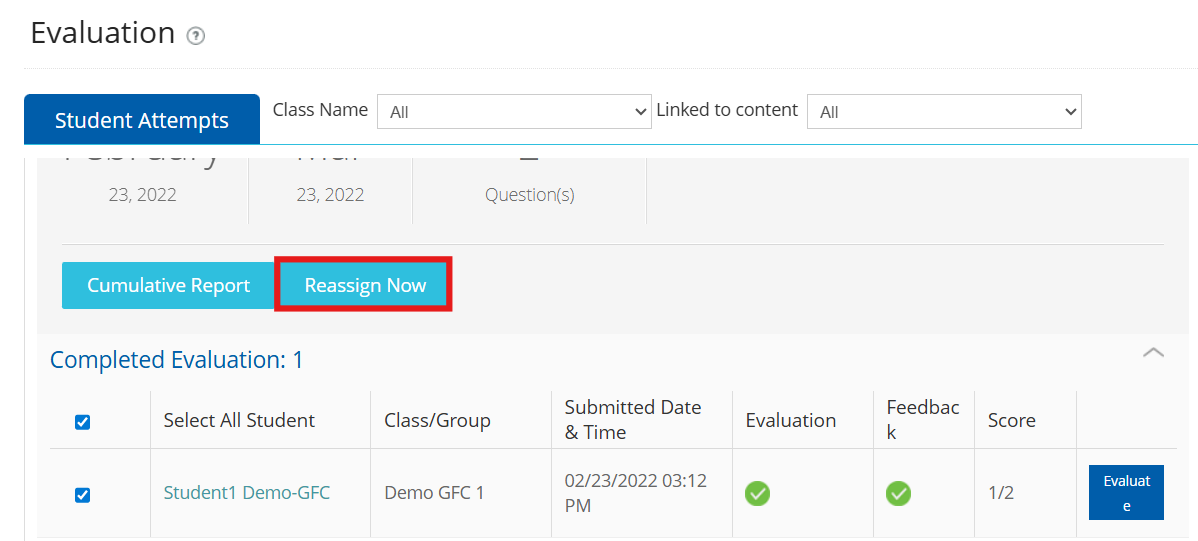
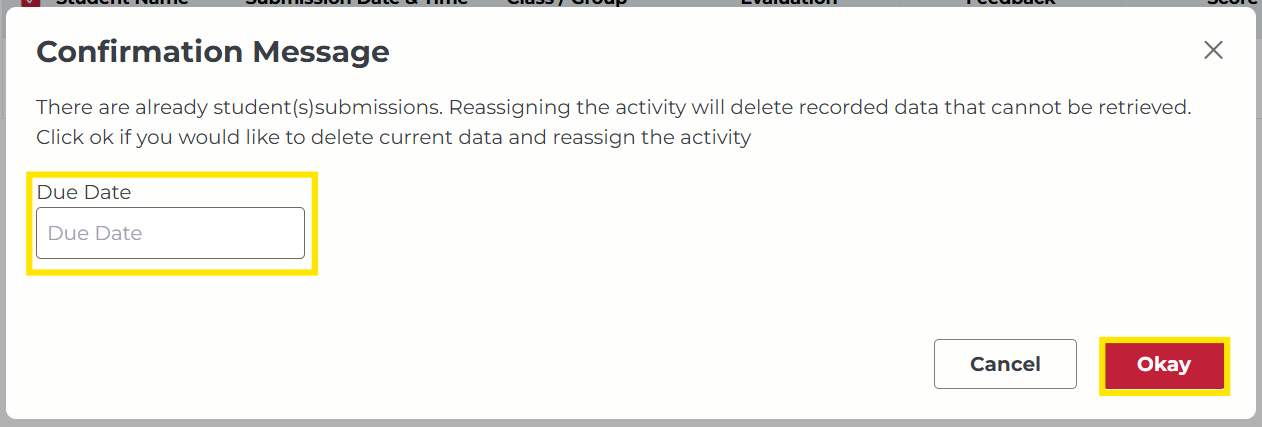
7. If the student has already attempted the activity which is selected for re-assignation then the currently recorded data will be deleted and will not be retrieved. You can set the new due date while reassigning the activity.
Click Okay to reassign the activity.
Not what you see? Click to see the old UI view.
Click 'OK' in the confirmation message pop up and reassign the activity.

Students Who Have Not Submitted
Follow the below steps to reassign the activity if students have not submitted the activity or missed the deadline.
1. Log in to the portal.
2. Click Activity on the left-hand side menu, then click Manage Evaluation.
Not what you see? Click to see the old UI view.
Click 'Activities' on the left-hand side menu. Click 'Evaluation' in the sub-menu.
3. Click on the Evaluate button under the Action column for the activity you wish to reassign.
Not what you see? Click to see the old UI view.
Click on the arrow icon to select the activity you wish to reassign.
4. On the left menu, select go to Not Responded.
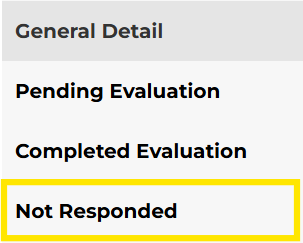
Not what you see? Click to see the old UI view.
Click 'Not Responded' to view the list of students who have not submitted the activity yet.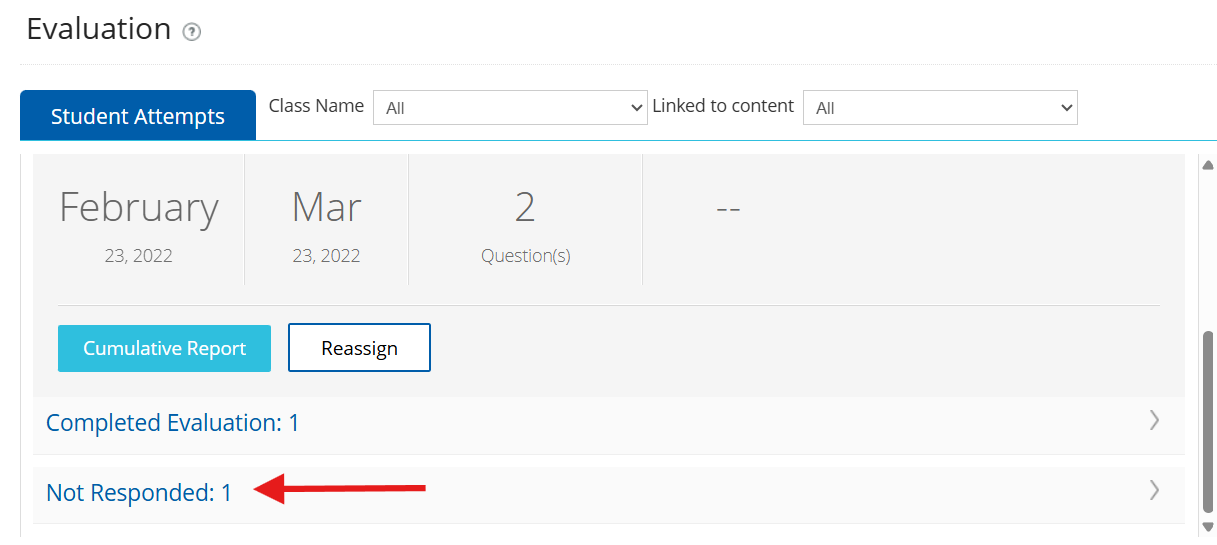
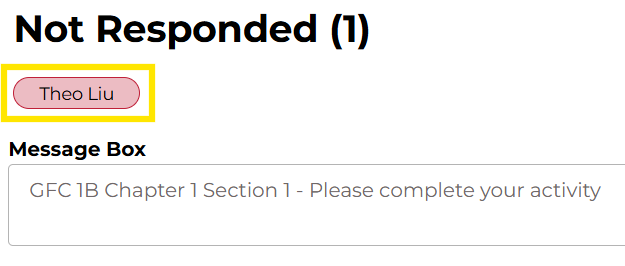
5. Click the names of the students to whom you wish to reassign the activity.
Not what you see? Click to see the old UI view.
Select the student(s) to whom you want to reassign the activity by checking the checkbox. You can also use the text box to send a customized message.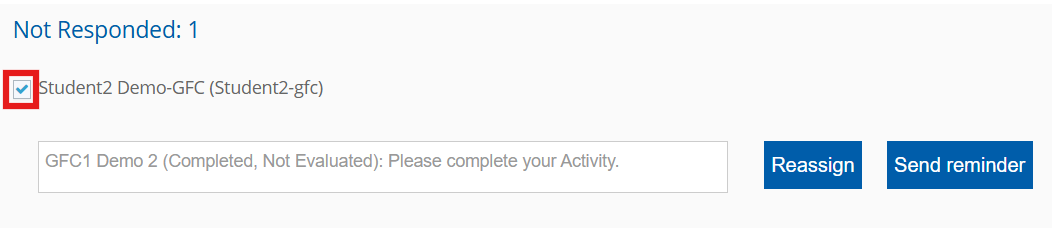
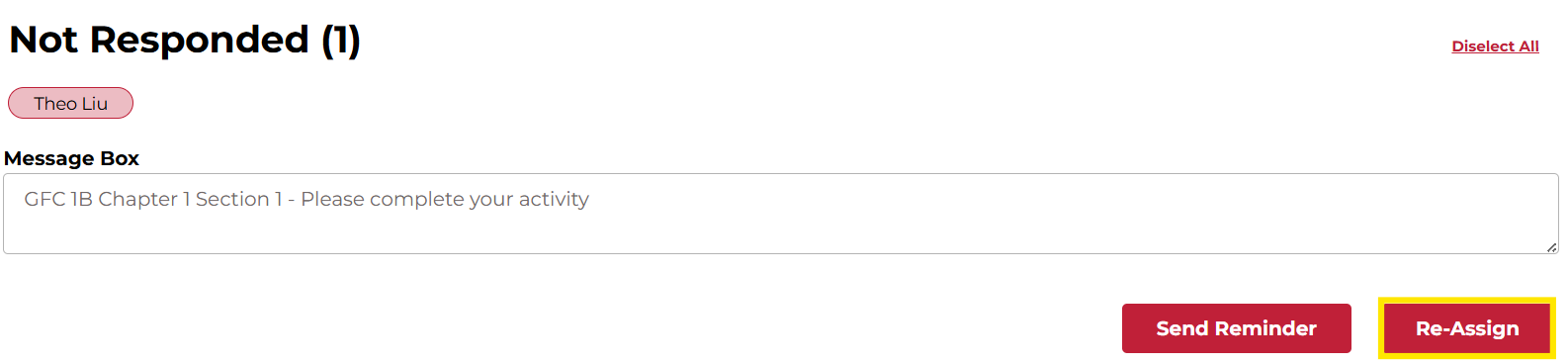
6. Click Re-Assign.
Not what you see? Click to see the old UI view.
Click the 'Reassign' button.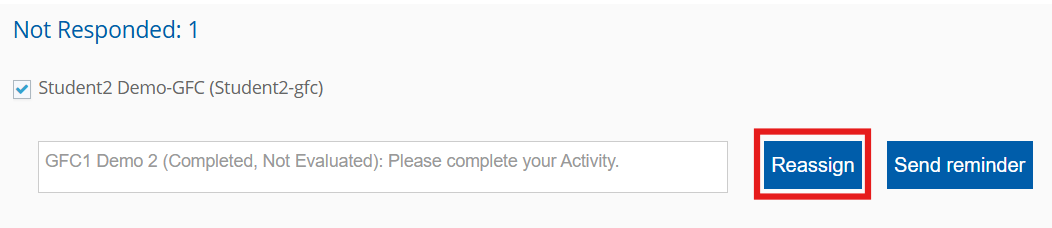
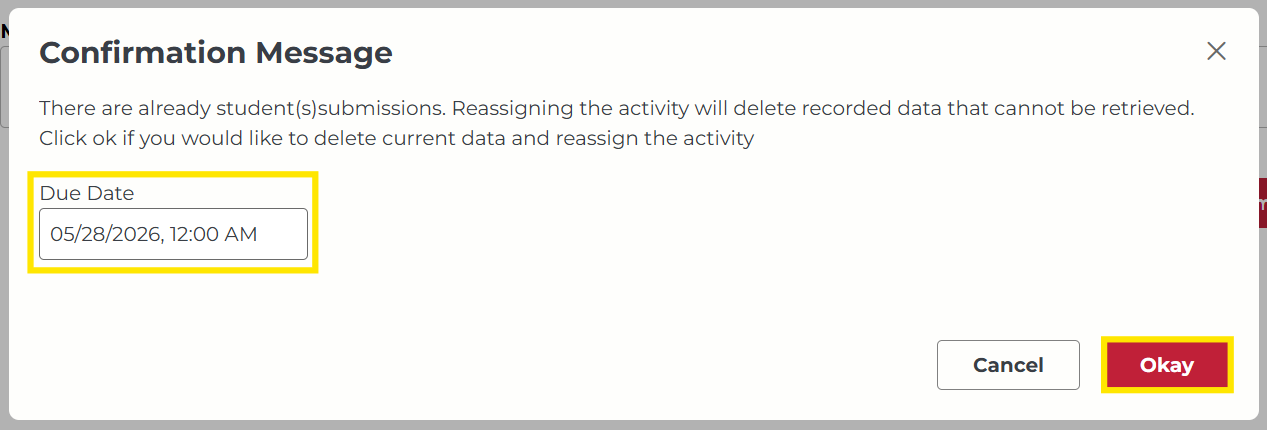
7. Select a new due date and click Okay.
Not what you see? Click to see the old UI view.
Teachers can set the new due date while reassigning the activity. Click 'OK' in the confirmation message pop up and reassign the activity.

Was this article helpful?
That’s Great!
Thank you for your feedback
Sorry! We couldn't be helpful
Thank you for your feedback
Feedback sent
We appreciate your effort and will try to fix the article