Accessing Your Books on FluencyLink
TABLE OF CONTENTS
Creating your account
Instructors who either purchase/receive their Cheng & Tsui digital books from Cheng & Tsui or from their school bookstore will be provided an access code.
This access code is required to register a new user account on fluencylink.com. Once registered, this access code will also unlock the books and any other materials associated with your license.
1. Go to https://fluencylink.com/.
2. Click New user? Register here.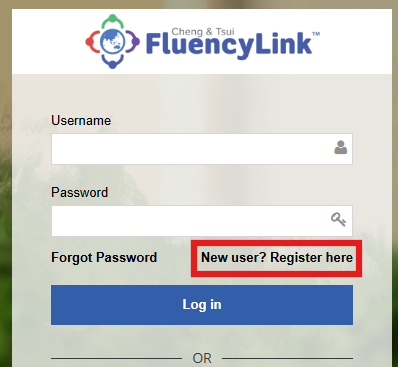
3. Enter your information in the registration fields.
Use your school email address to register your account. If you do not have one, use another email address.
Paste your access code in the Access Code field. If you received more than one access code, paste one of them here. Instructions for how to activate your remaining access codes follow, later in this document.
Confirm that you have read the Privacy Policy by selecting the checkbox.
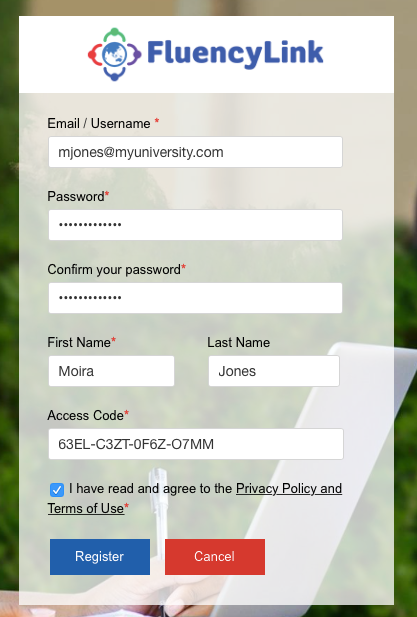
4. Click the Register button.
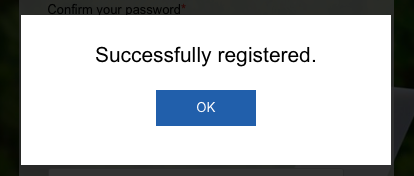
5. You will see a confirmation message that the account has been registered. Click OK, which will log you into your FluencyLink account.
6. You will see the FluencyLink Teacher platform. Go to Learning Content -> Library to see your book(s).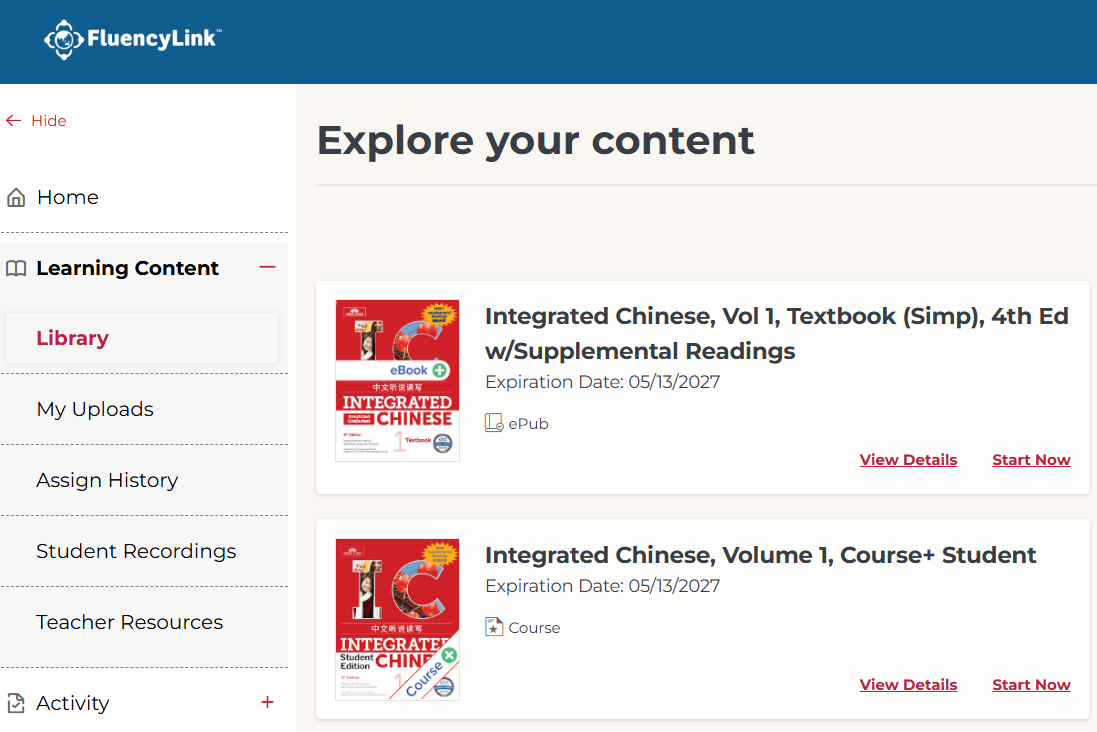
Not what you see? Click to see the old UI view.

Downloading Your Resources
1. On the left menu, open Learning Content, then click on Teacher Resources.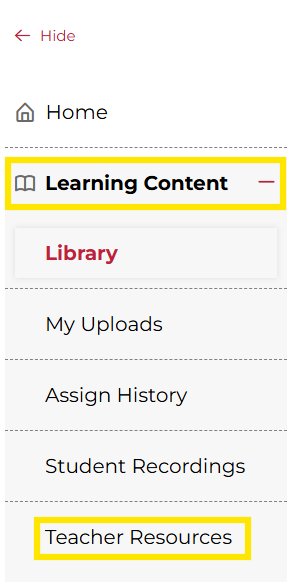
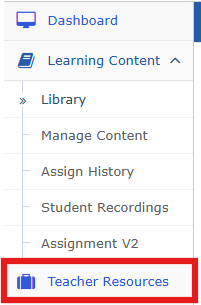
On the left menu, click on Teacher Resources.
2. Look for the documents labeled Teacher Resources. There are separate documents for each level or volume. Click Start Now on the one you would like to download the resources for.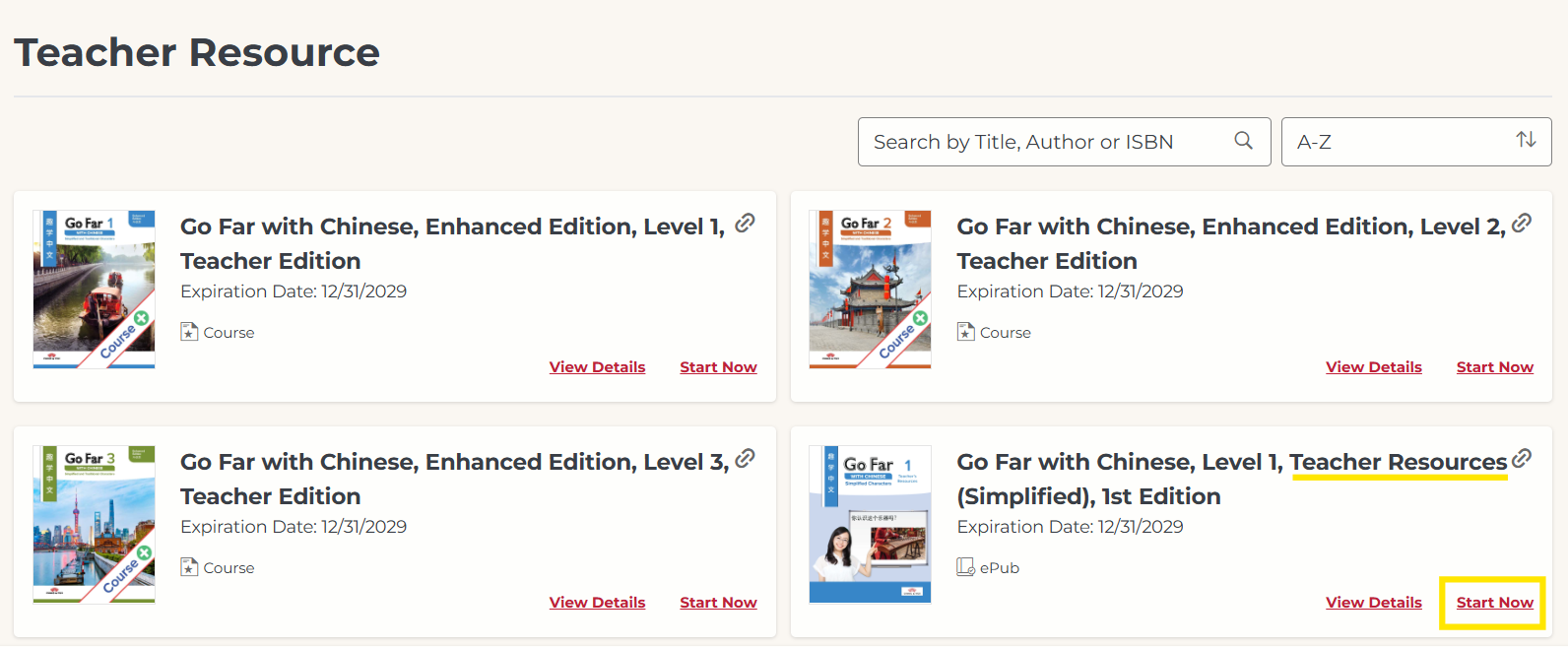
Look for the documents labeled Teacher Resources. There are separate documents for each level or volume. Click on the one you would like to download the resources for.
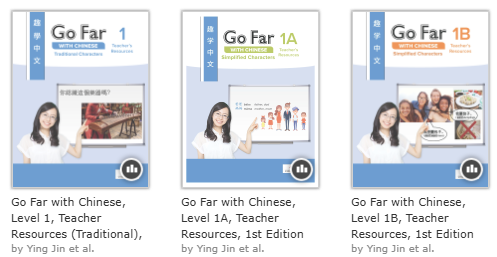
3. Click on the link icons to download the resource folders. The resources are separated into different folders. For example: (A) general resources, (B) Unit 1 resources, and (C) Chapter 1 resources.
4. The folder(s) will download to your computer. They are zip folders, so you will need to unzip them after downloading.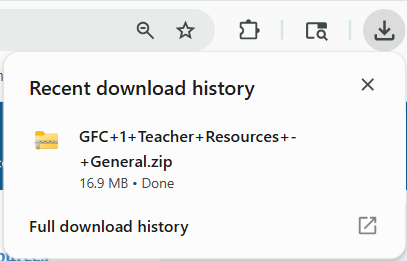
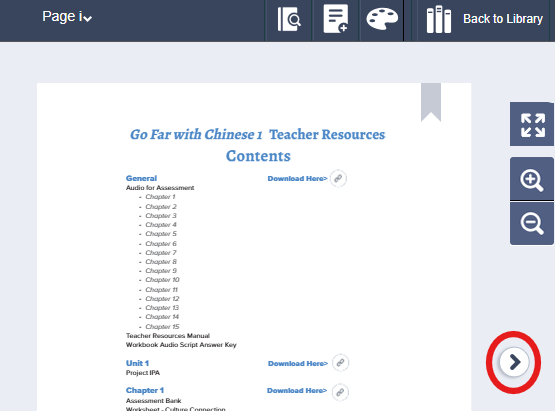
5. You may need to turn to the next page to download the rest of the resources. Click the arrow buttons on the side to move from page to page.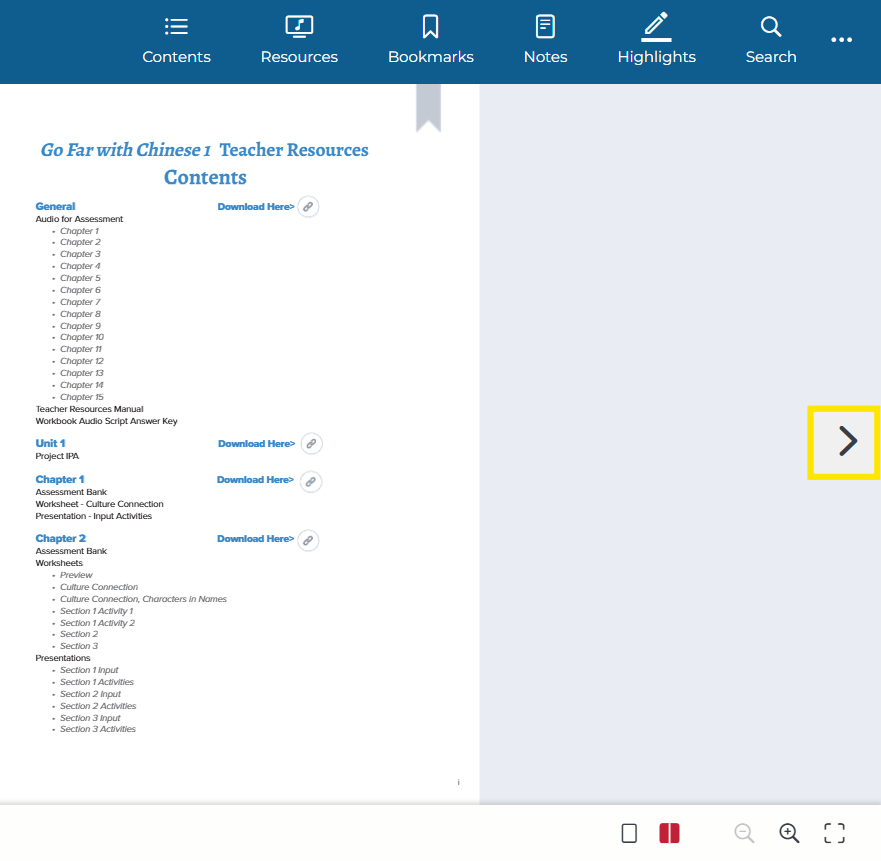
Not what you see? Click to see the old UI view.
Activating Additional Access Codes
Follow the steps below if you received more than one access code at the time of registration or whenever you receive a new access code.
1. Click on the round icon in the upper-right corner of the FluencyLink screen to open the drop-down menu and select Access Code.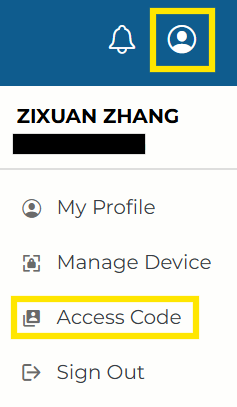
Not what you see? Click to see the old UI view.
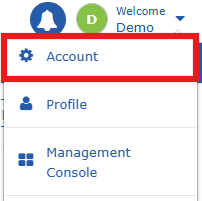
Click your account name in the upper-right corner of the FluencyLink screen to open the drop-down menu and select Account.
2. In the Paste Here box, paste your new access code and click the Add button. 
Not what you see? Click to see the old UI view.
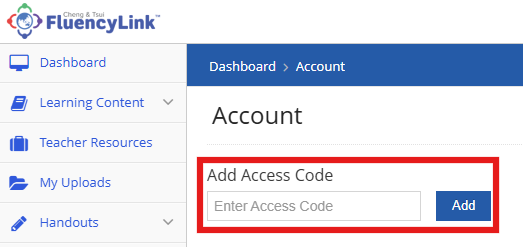
In the Add Access Code field, paste your new access code and click the Add button.
3. You will see your new book(s) on your dashboard. If these new materials are for your current class(es), you can stop here. If your new book(s) are for a new class, create the new class and hand out the class enrollment token to the students in that class.
Was this article helpful?
That’s Great!
Thank you for your feedback
Sorry! We couldn't be helpful
Thank you for your feedback
Feedback sent
We appreciate your effort and will try to fix the article