Performance Reports
This guide will cover what you can find under the Reports > Activity Performance > Performance Report page via the side menu.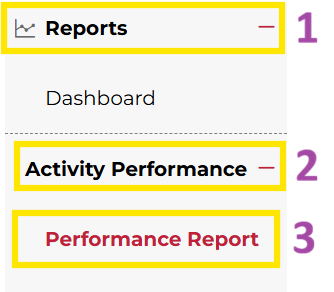
Not what you see? Click to see the old UI view.
This guide will cover what you can find under the Activities > Performance Report tab via the side panel.

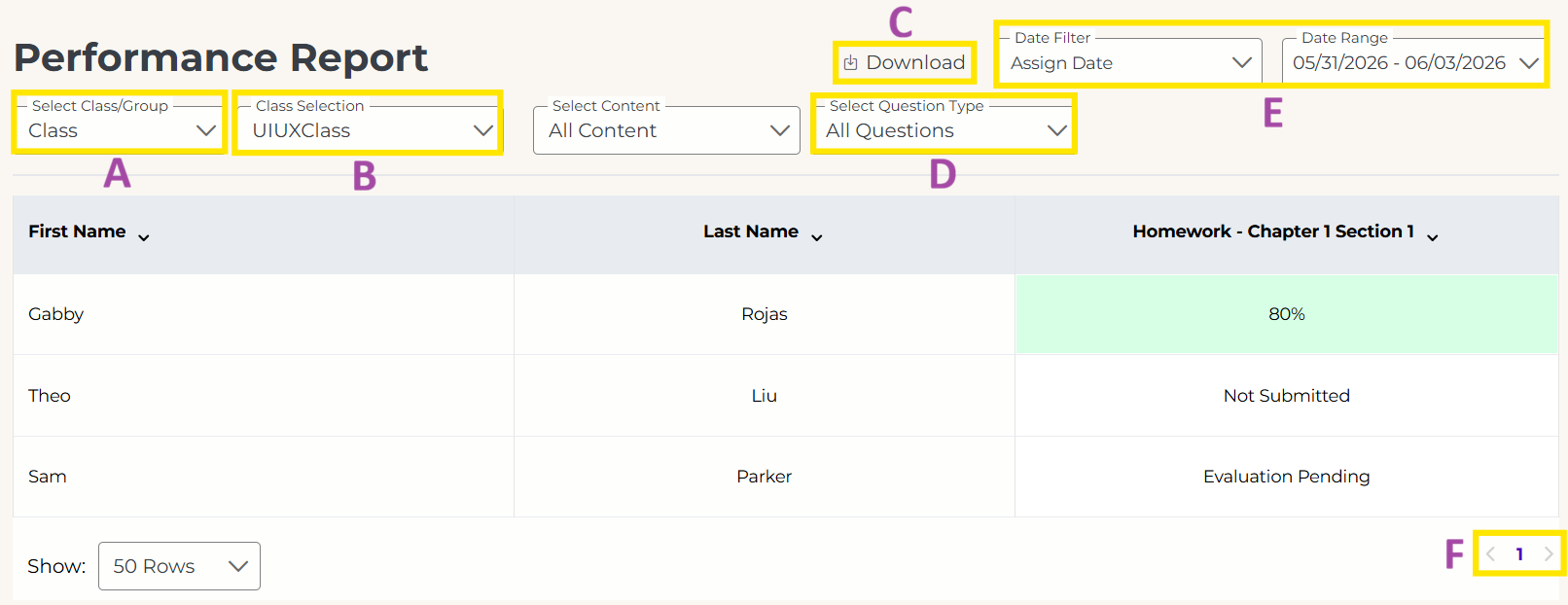
A. Class or Group Mode: Choose whether to view grades for a class or a group.
B. Select Class/Group: Select the specific class or group you want to see scores for.
C. Download: Click to download an Excel copy of the report.
D. Question Filter: Choose whether to view scores for All Questions or only Evaluated Questions.
- All Questions: You will see Evaluation Pending for any student submissions that have not been evaluated yet.
- Evaluated Questions: You will see a temporary score for the auto-graded portions of any student submissions that have not been evaluated yet.
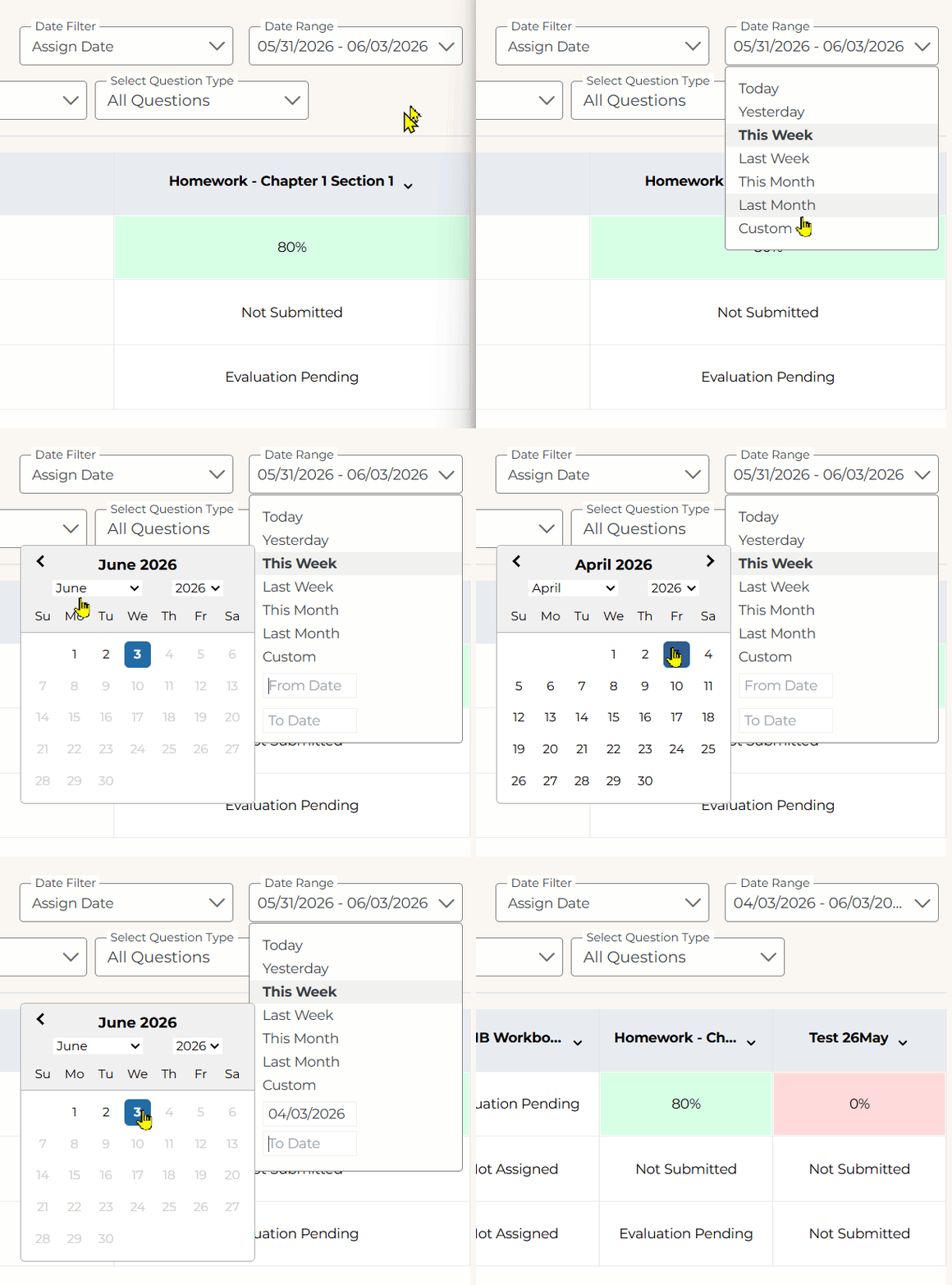
E. Date Filter: Choose whether to filter by Due Date or Assign Date. Then in the Date Range box, you can choose one of the default options or select Custom and use the From and To boxes and calendar popups to select your custom date range.
F. Scroll: Each column represents an individual assignment. Use the arrows to scroll left or right.
Not what you see? Click to see the old UI view.


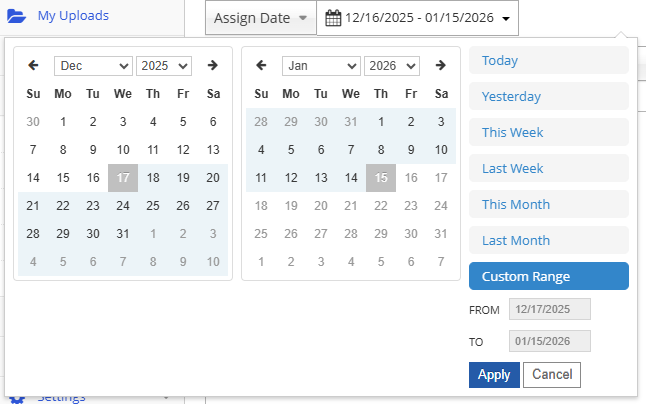
When filtering by Assign Date or Due Date, there are some predefined options (as pictured below) as well as an option to enter a custom range.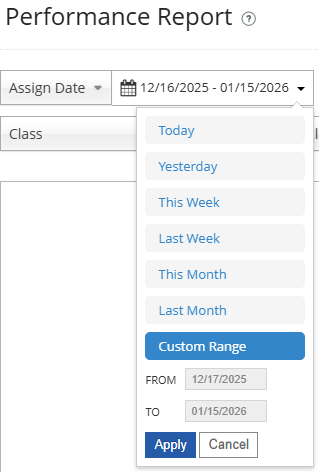
1. Click on the box with the calendar icon and select Custom Range from the option list. Two calendars will appear.
2. If needed, use the arrows or the month and year dropdowns to move to your desired month/year.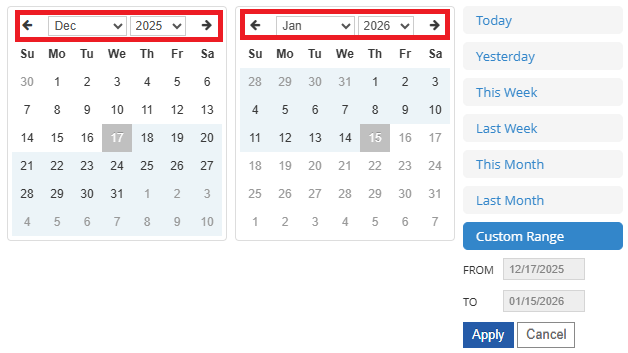
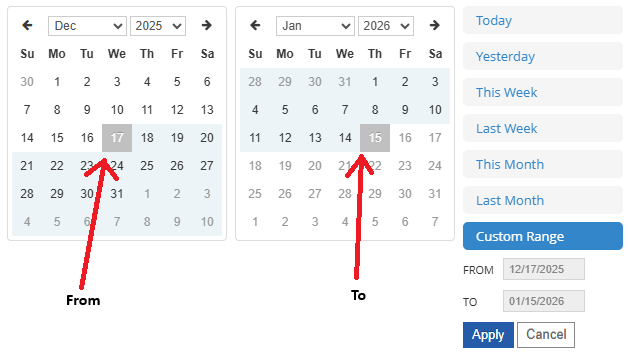
3. Select your FROM date (left) and TO date (right) by selecting the dates on the calendar.
4. Confirm that your desired dates are reflected in the bottom right corner, then select Apply.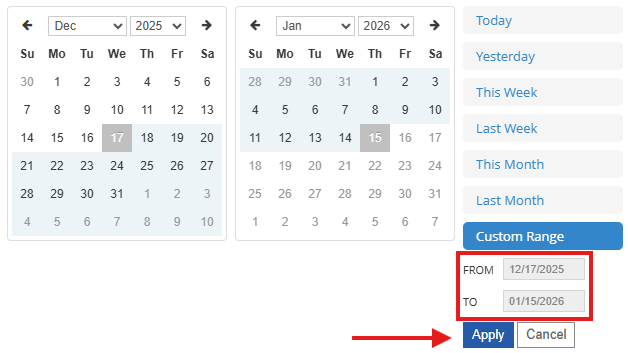
Was this article helpful?
That’s Great!
Thank you for your feedback
Sorry! We couldn't be helpful
Thank you for your feedback
Feedback sent
We appreciate your effort and will try to fix the article