Evaluating Activities
TABLE OF CONTENTS
- Video Tutorial: Evaluate Assessment & Performance Reports
- Introduction
- Manage Evaluation
- Evaluation Overview
- Evaluate Student Response
- Cumulative Report
Video Tutorial: Evaluate Assessment & Performance Reports
(Note: Video is optional. Below article contains additional, specific information on evaluations.)
Not what you see? Click to see the old UI view.
Introduction
This guide will cover what you can find under the Activity > Manage Evaluation page via the side panel.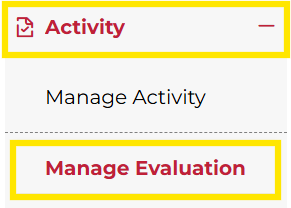
Not what you see? Click to see the old UI view.
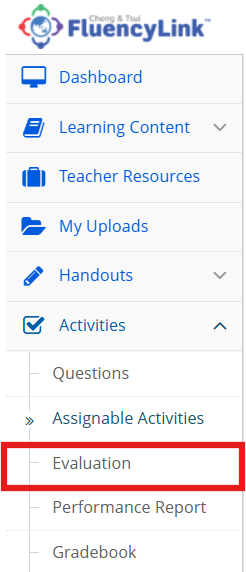
This guide will cover what you can find under the Activities > Evaluation tab via the side panel.
Manage Evaluation
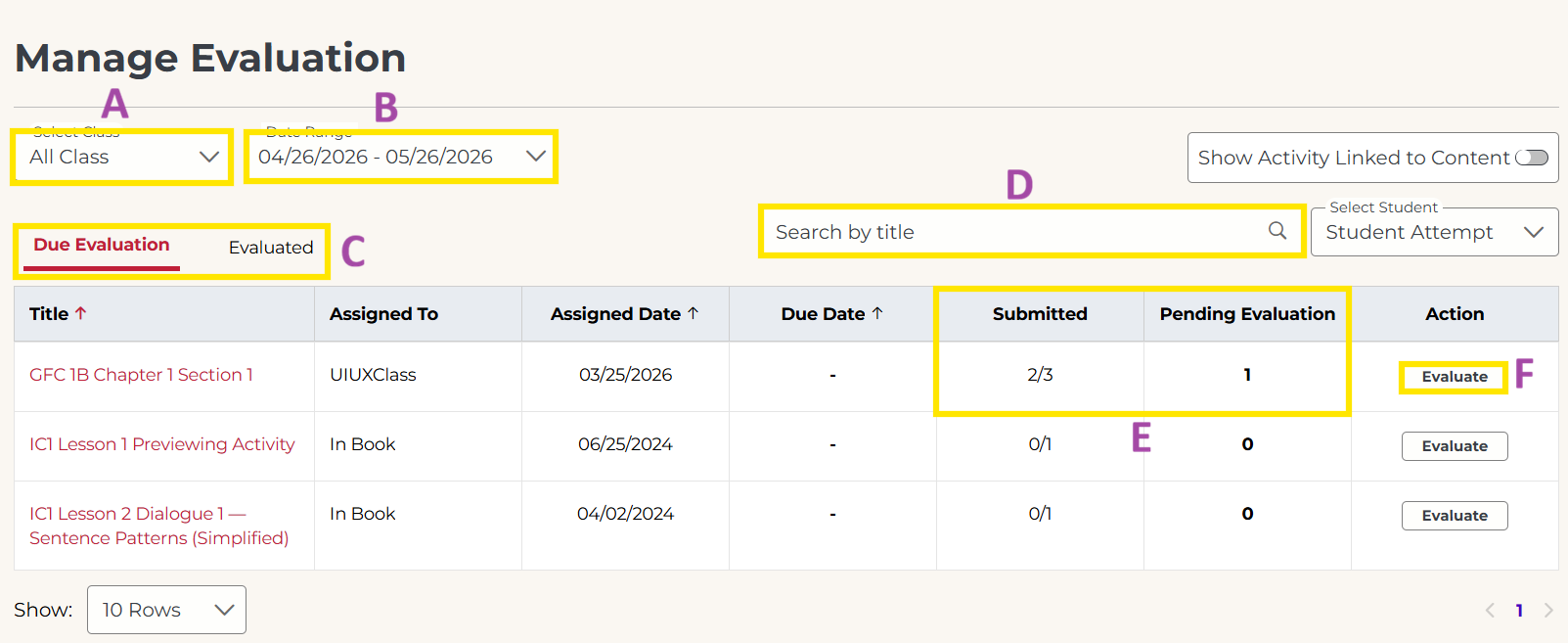
A. Class Filter: Use the dropdown to filter activities based on which class they are assigned to. You can also set it to All Classes (no filtering) or In Book (activities the students completed inside the eReader or Course Player).
B. Date Range: If you aren't seeing any activities listed, click here to adjust the date range of the displayed activities.
C. Due Evaluation & Evaluated: Switch between these tabs to see unevaluated activities (Due Evaluation) or already evaluated activities (Evaluated).
D. Search: Search to limit results by title.
E. Submitted & Pending Evaluation: Indicates how many students have submitted responses and how many responses are waiting to be evaluated.
F. Evaluate: Click this button to evaluate any new submissions or see details for already evaluated submissions.
Not what you see? Click to see the old UI view.


Evaluation Overview
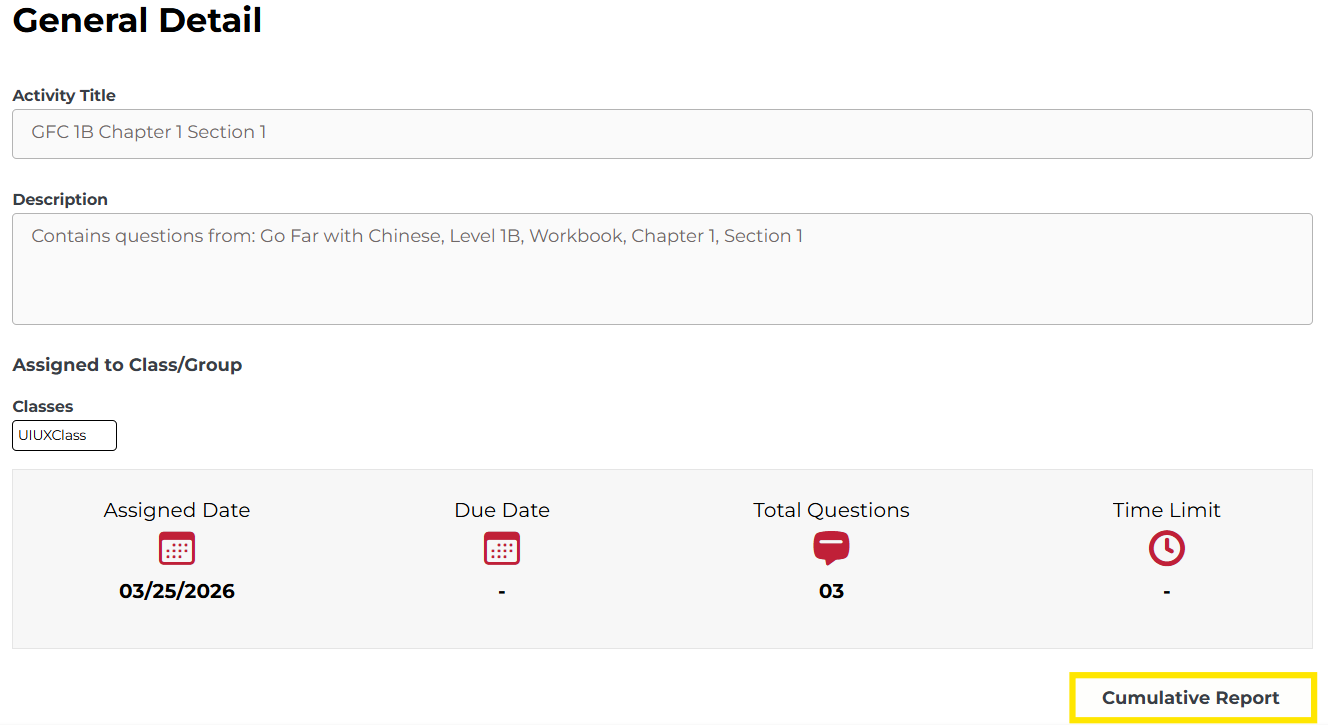
While evaluating an activity, the General Details pages displays a basic overview, including:
- Class(es) or Group(s) it is assigned to
- Assigned Date
- Due Date
- Total Questions
- Time Limit
On the bottom right, you can access the Cumulative Report.
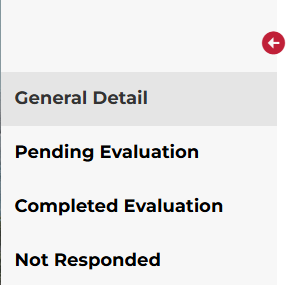
On the left sidebar, you will see several tabs:
- Pending Evaluation
- Complete Evaluation
- Not Responded
Not what you see? Click to see the old UI view.


Evaluate Student Response
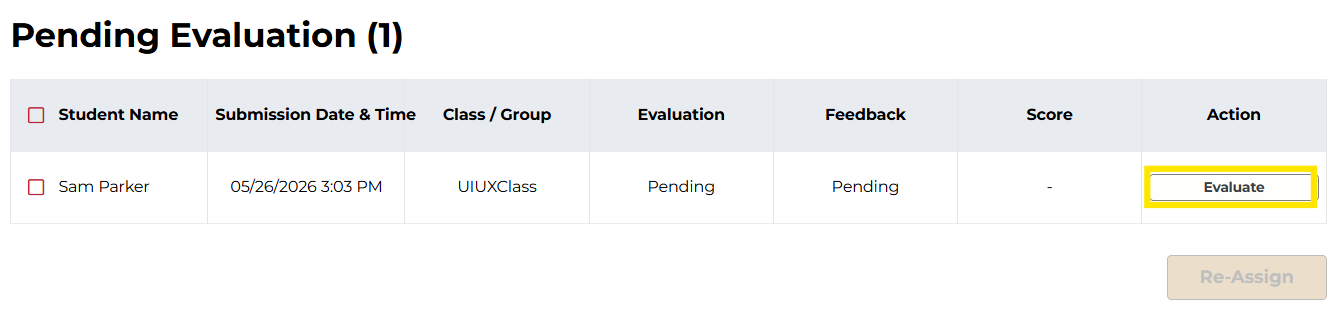
1. You will see the list of students whose responses await grading by clicking on the "Pending Evaluation" tab. 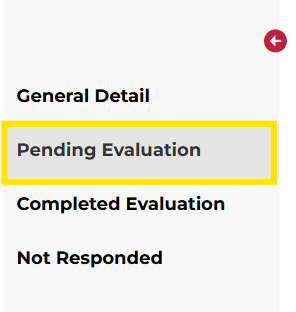
Not what you see? Click to see the old UI view.

2. Click "Evaluate" for a particular student to see all the questions attempted by that student in a pop-up. The set of questions in the entire activity can be of any question type.
Not what you see? Click to see the old UI view.

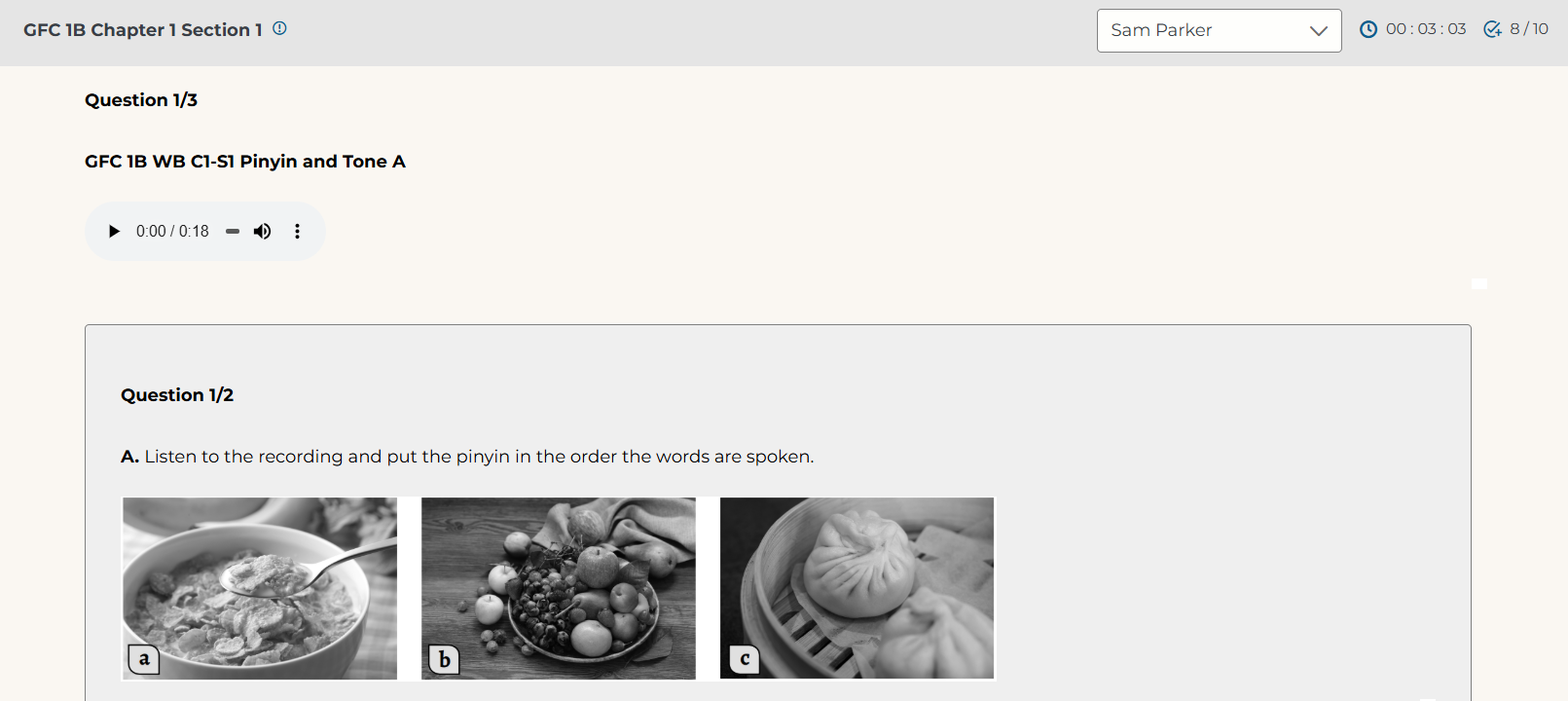
3. The student’s responses will pop-up on the screen.
Not what you see? Click to see the old UI view.
You may need to click the blue "View Comprehension Sub-Questions" button to see the full responses.

4. The teacher can view the answer provided by the student, assign or adjust the score, and provide feedback manually (optional). Scores will be rounded to two decimal places.
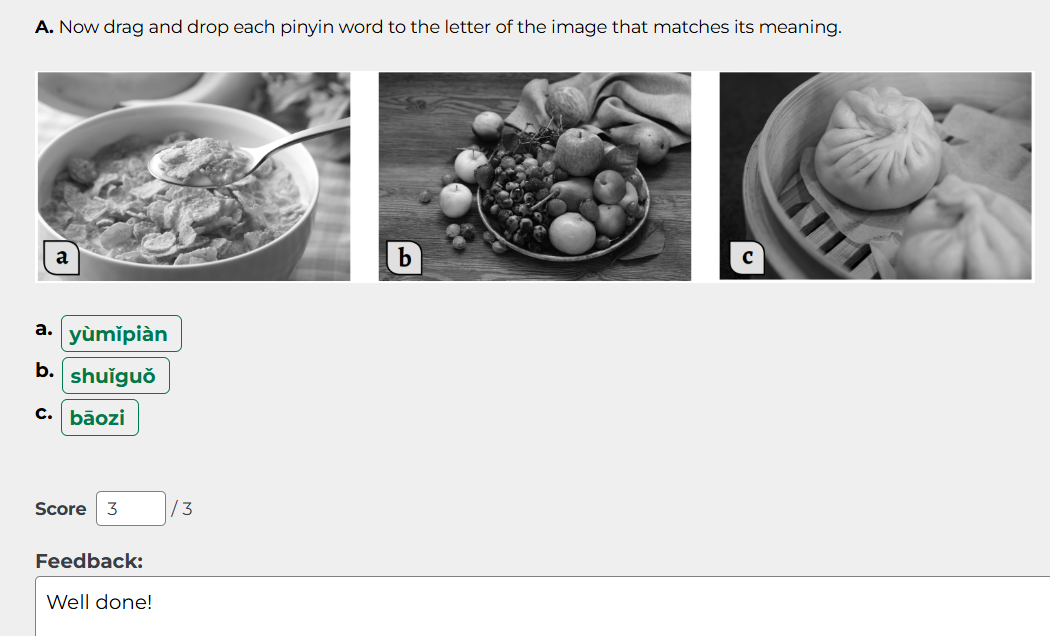
The following question types will be automatically scored. Teachers can manually adjust the scores if desired.
Single Choice
Multiple Choice
Ordering
Association
Match the Following
Fill in the Blanks
Fill in the Blanks with Dropdown
Fill in the Blanks with Drag and Drop
For questions requiring manual grading, you will see a red X icon and a temporary score of 0 points.
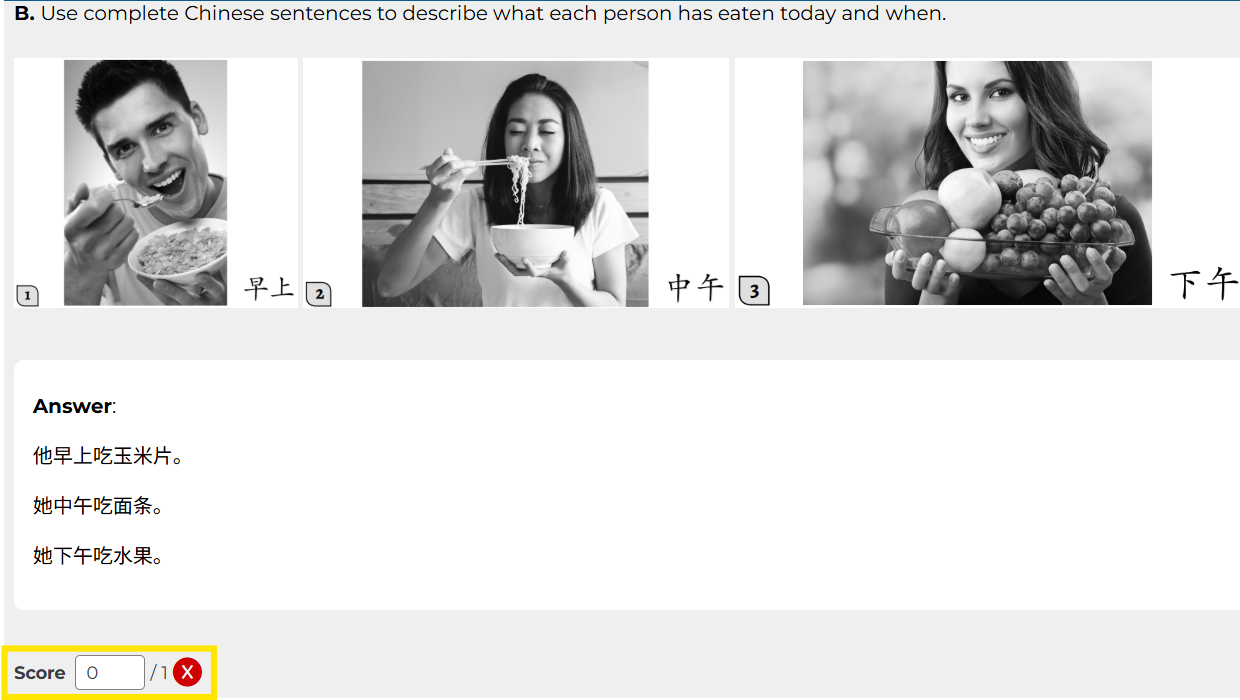
The following question types need to be manually checked and scored by the teacher.
Descriptive
Audio Recording
Drawing
Drag and Drop with Image
Not what you see? Click to see the old UI view.

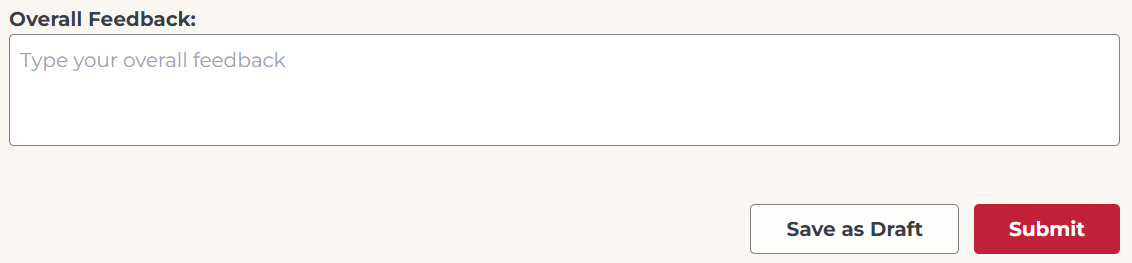
5. Click Submit to send the final score and feedback to the student. You can also include additional feedback for the activity as a whole.
Not what you see? Click to see the old UI view.

Cumulative Report
The Cumulative Report is a summary of activity results for all evaluated students. Here you will see whether students got questions correct, partially correct, or incorrect, as well as average data for the class. 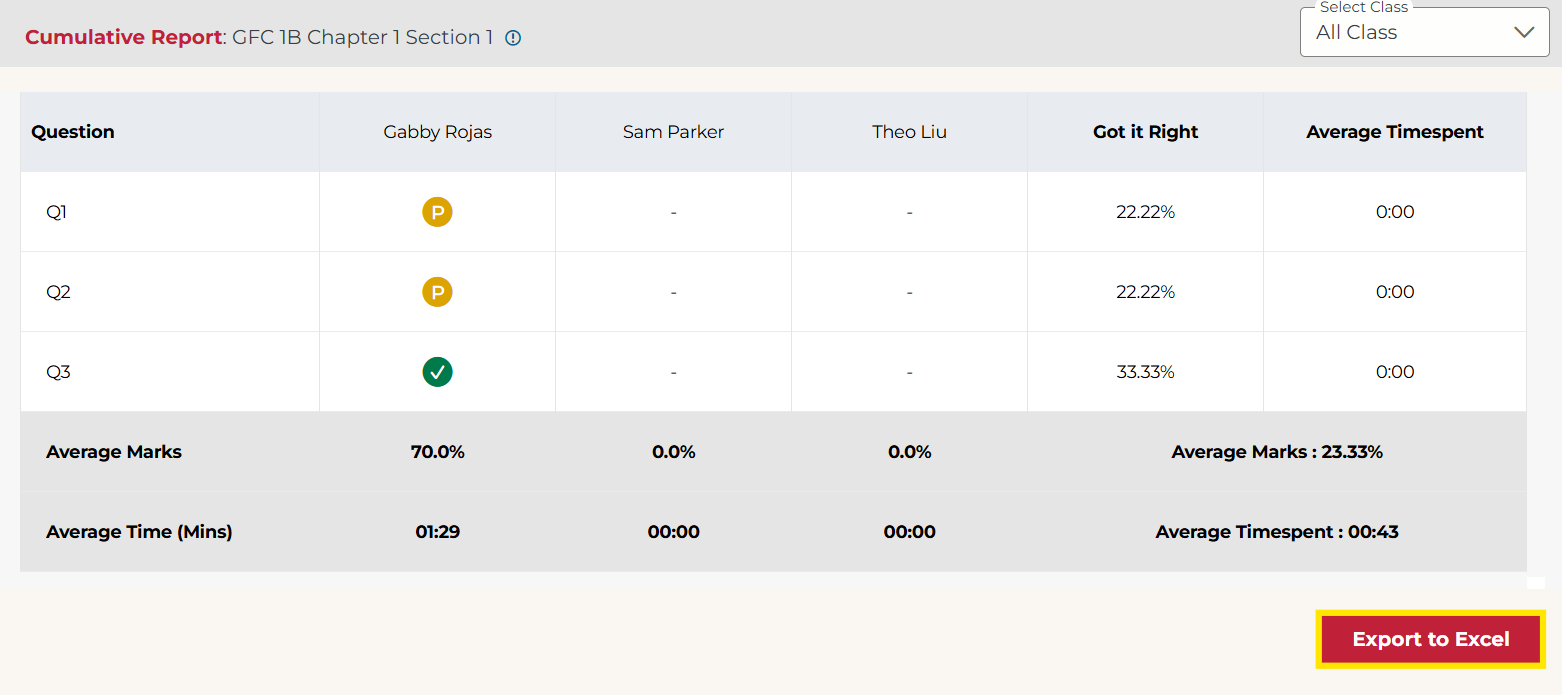
Not what you see? Click to see the old UI view.

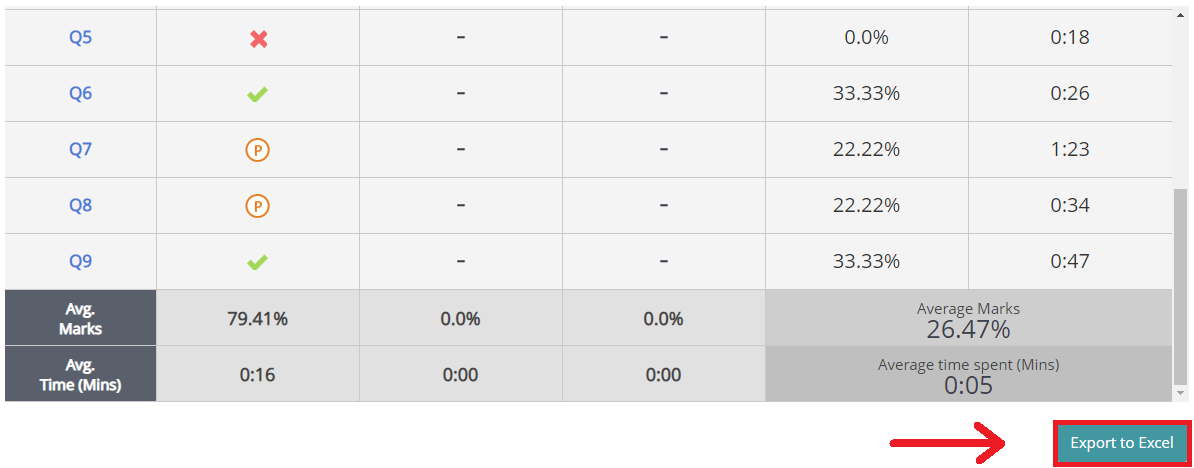
This report may be exported as an Excel file by clicking the button on the bottom right.

Was this article helpful?
That’s Great!
Thank you for your feedback
Sorry! We couldn't be helpful
Thank you for your feedback
Feedback sent
We appreciate your effort and will try to fix the article